HeartnestOnline dating website with video calls · DocumentationVersion 1.0.1
Version 1.0.1 · November 2026
Heartnest documentation
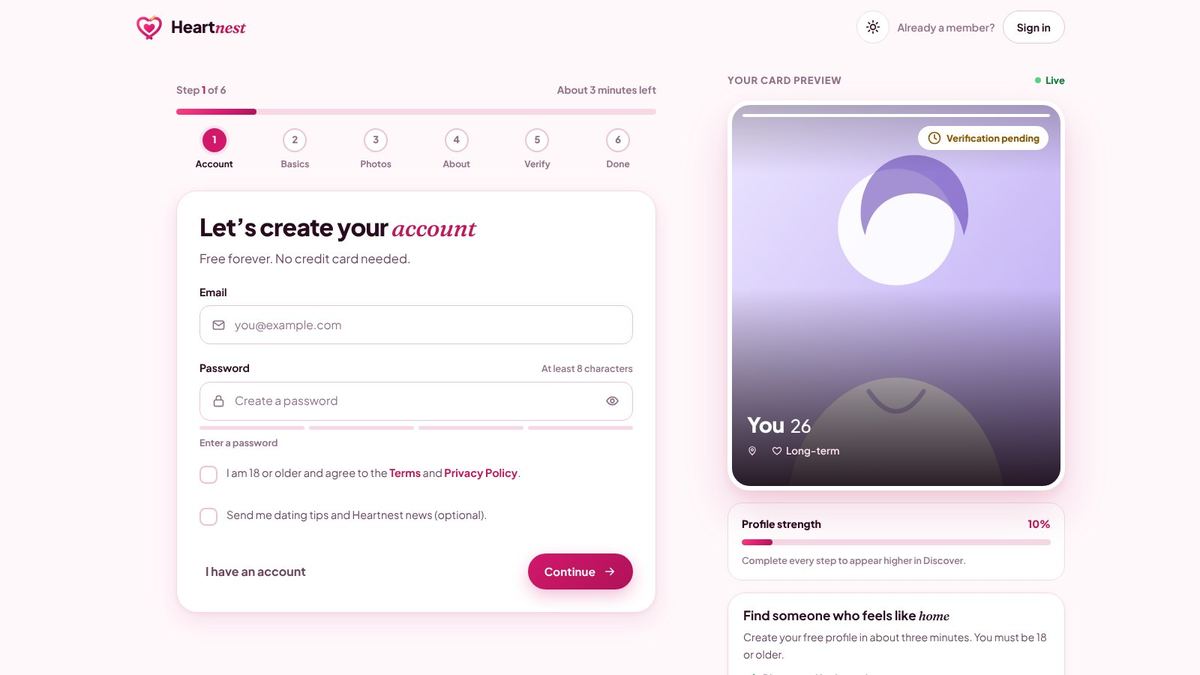
Heartnest is a complete online dating website you run under your own name. Members join in six short steps, verify with a selfie, swipe in Discover or search with filters, and every mutual like becomes a match. Matches chat in real time – photos, voice notes, gifts, typing and read receipts – and meet face to face on HD video or voice calls right inside the site, without sharing a phone number.
You earn with Free, Plus and Gold plans paid per month or year (No auto-renew – members get a reminder with a pay link) and with coins for gifts, boosts and extra Super Likes. Payments run through Stripe, PayPal, Paystack, Razorpay or bank transfer, with US sales tax by state. A full admin panel covers members, moderation (photos, video intros, reports, selfies), calls, payments, content and every setting. Light theme and full dark mode, installable app (PWA) with push alerts.
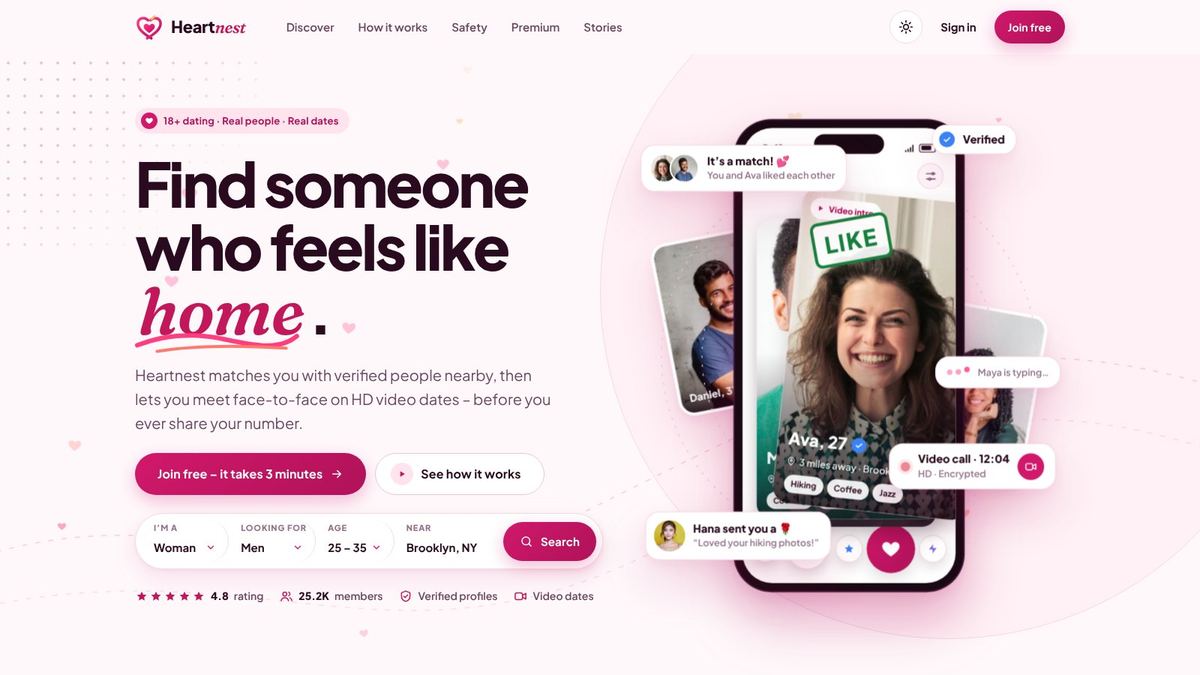
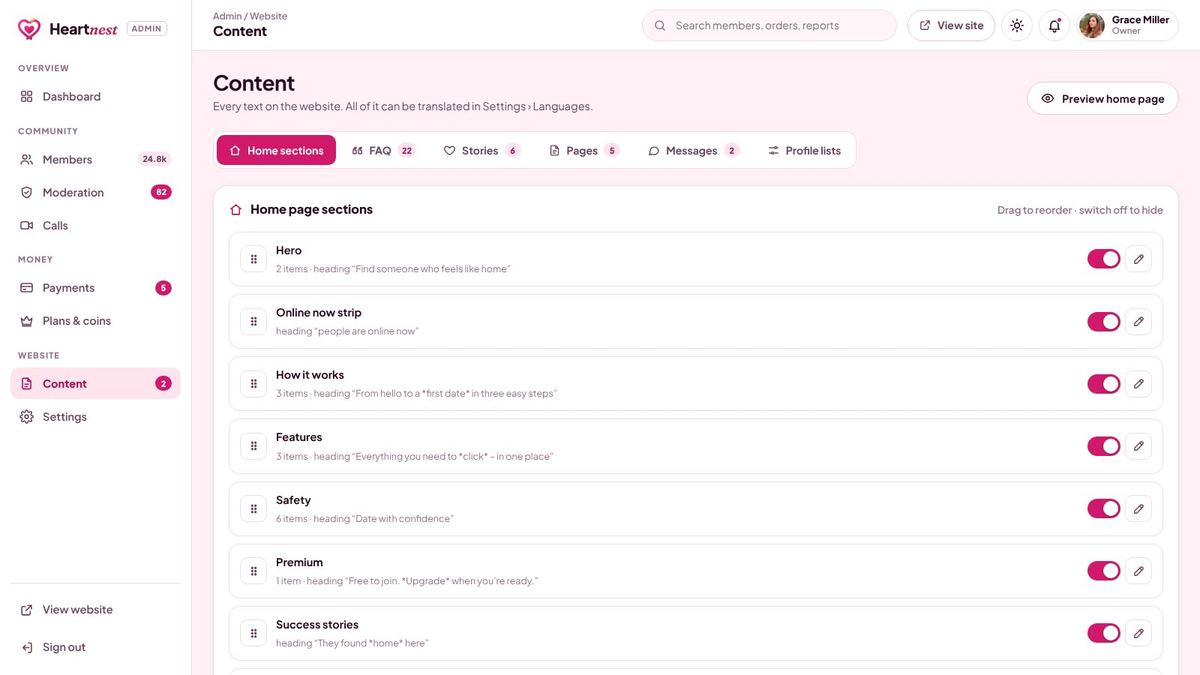
The landing page – every section, heading and list is edited in Admin › Content › Home sections (order and hide them too).
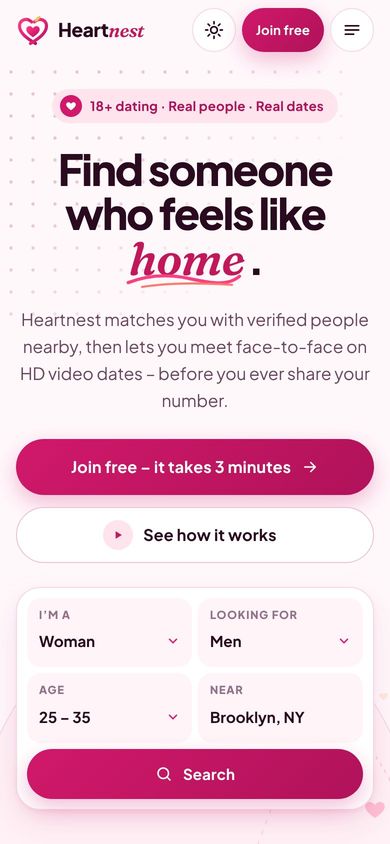
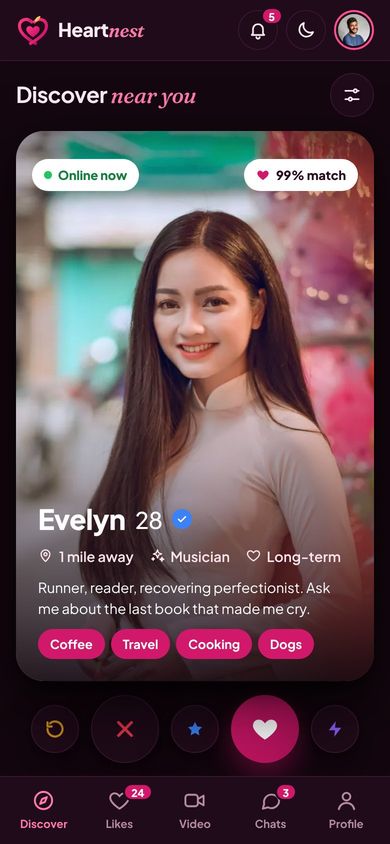
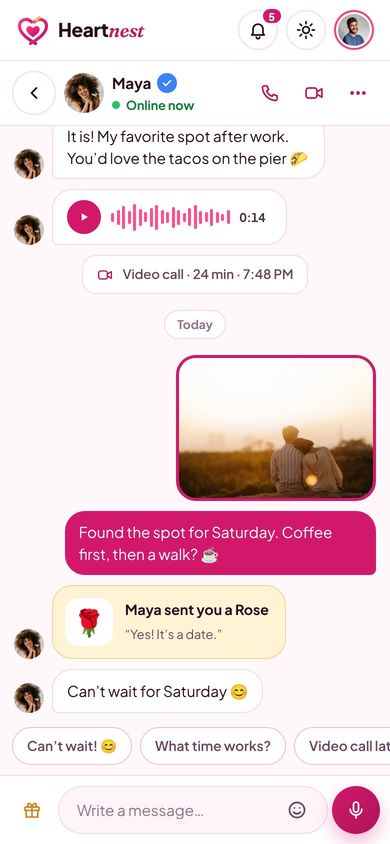
Home – phoneDiscover – dark themeChat – phoneProfile – phone
Areas, roles & logins
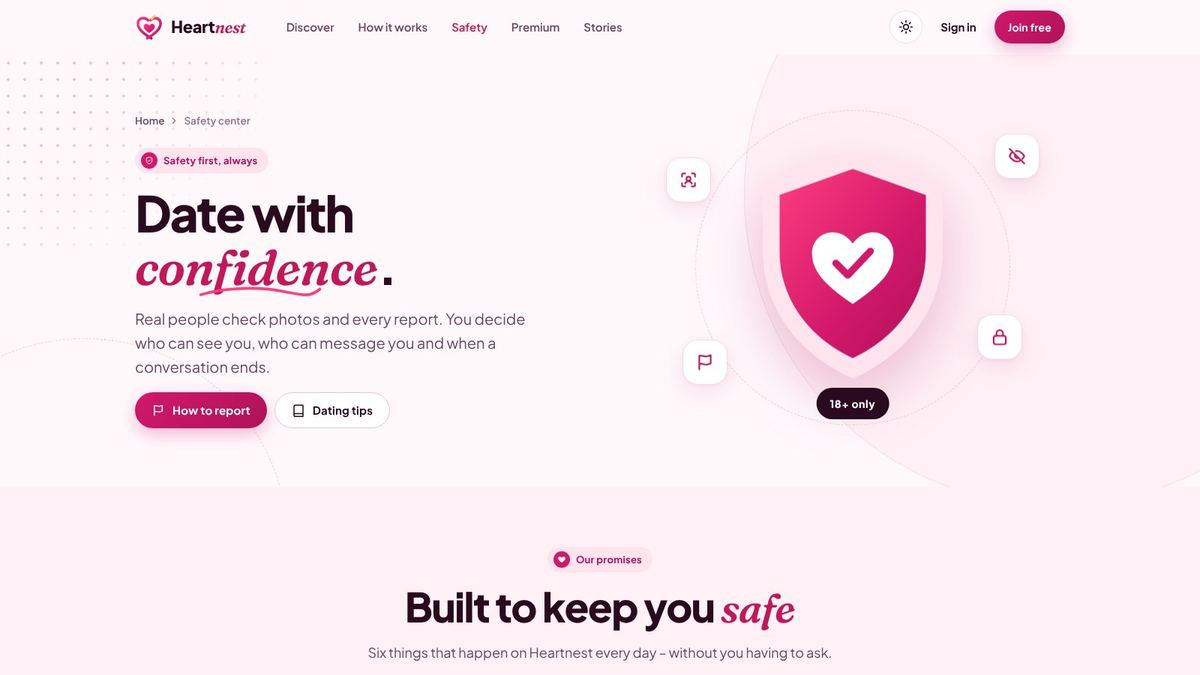
Public website Landing page, Premium (plan comparison), Safety, Stories, Help & contact, legal pages, join wizard and sign-in.
Member area Discover, Search, Likes, Chats, Alerts, profiles, calls, My profile, Settings, Verification, Wallet & invoices, Checkout.
Admin – /admin Dashboard, members, moderation, calls, payments, plans & coins, content and every setting.
Role
Where
What they can do
Owner
Admin
Everything, including the team, gateways and updates. The installer creates this account.
Admin
Admin
The admin sections the owner allows in Settings › Team (all of them by default).
Moderator
Admin
Dashboard, members and moderation only – never payments, plans, calls setup or settings.
Member
Member area
Their own profile, matches, chats, calls, coins, orders and invoices only.
Everyone signs in at /login and lands in the right place. With the demo data you get these accounts (password demo1234):
Account
E-mail
One click on the demo
Member – Daniel Reyes, Brooklyn, Plus plan (18 days left), 340 coins, 24 new likes, matches and chats with calls
daniel.reyes@example.com
/demo-login/member
Admin – Grace Miller (Owner title)
grace.miller@example.com
/demo-login/admin
Moderator – Jordan Lee
jordan.lee@example.com
/demo-login/moderator
The one-click links work only while demo mode is on. Your own owner account from the installer works in every case. The admin address can be changed with ADMIN_PATH in .env.
Features
Meet
Discover swipe deck: like, pass, Super Like, rewind and boost – buttons, keyboard and swipe gestures
“It's a match” dialog with a quick first message
Search grid with filters: age, distance, looking for, interests, online now, verified, video intro, new members
Match score with things in common, today's top picks, new matches row
Profiles
Up to 6 photos by default, up to 9 (re-encoded to WebP, drag to reorder), a short video intro with its length read on the server
Selfie verification with a pose – the blue tick after the team approves
Profile completeness meter with the next steps
Chat & calls
Real-time chat: text, photos, voice notes, gifts, typing, seen ✓✓ (read receipts per plan), quick replies
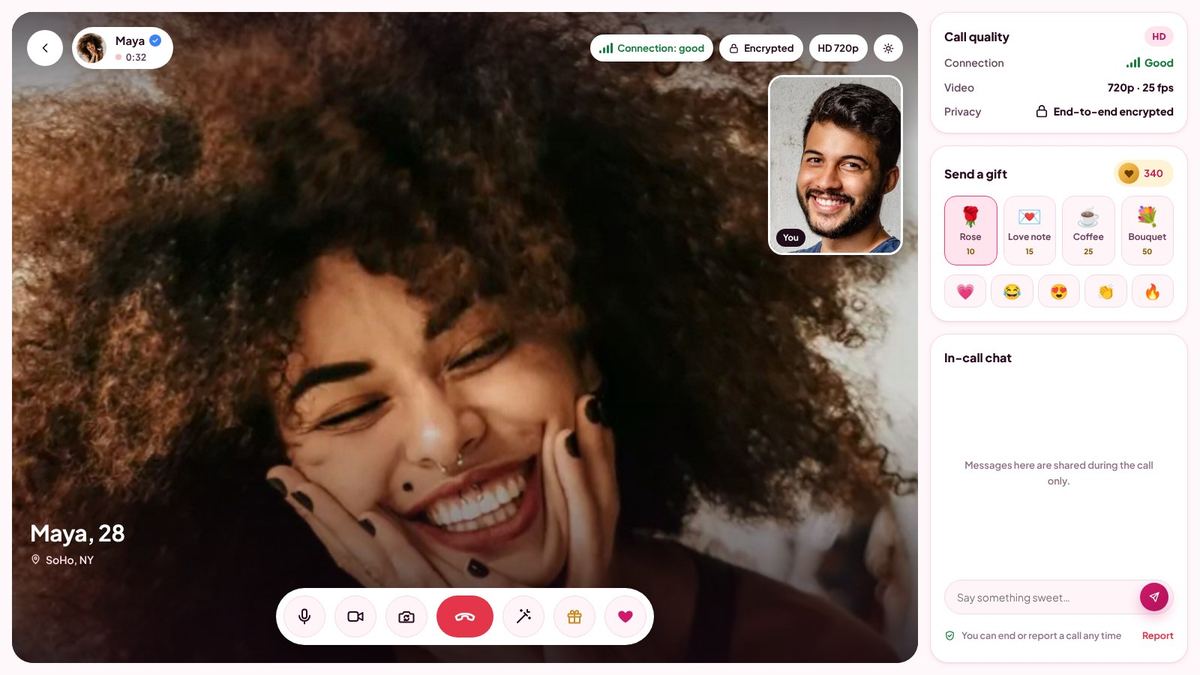
HD video and voice calls (WebRTC) between matches – ringing, call timer, in-call chat, gifts and reactions
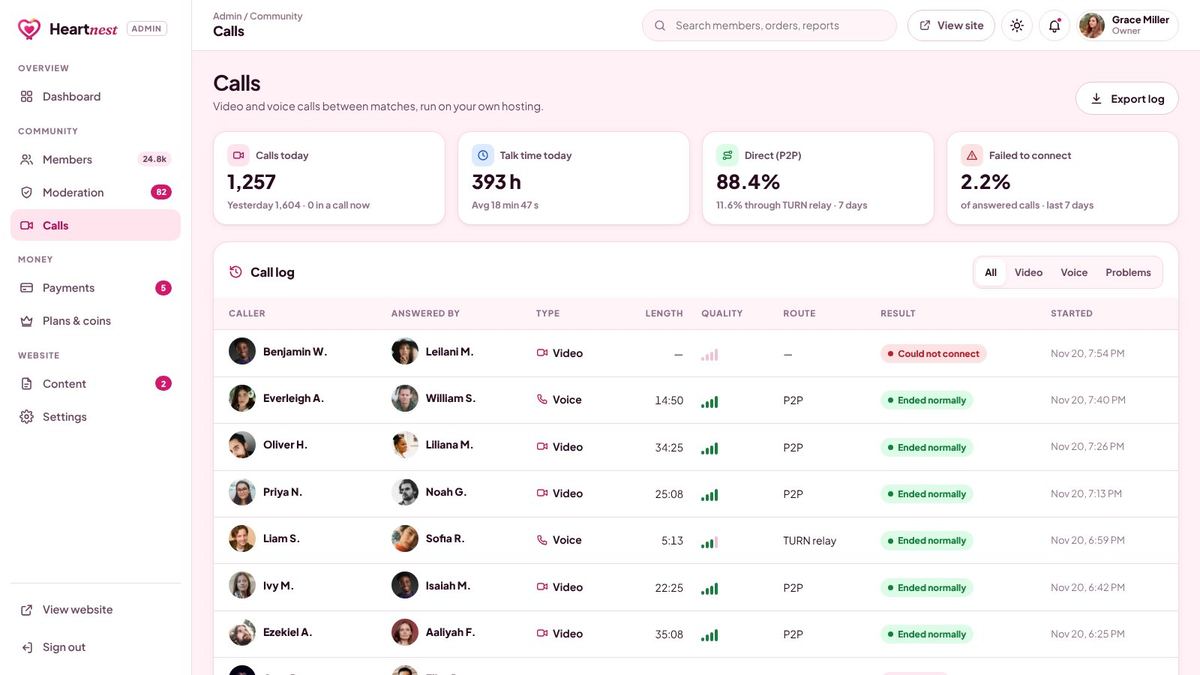
Call length per plan, call log, quality stats and rating chips; your own STUN / TURN servers
Unmatch, block and report from every chat and call
Likes & alerts
Likes you (blurred for plans without “See who likes you” – names and photos never reach the page), matches, visitors, Super Likes
Alerts page and bell, e-mail and push alerts per topic
Installable app (PWA) with an offline page and an “Install app” prompt
Safety & privacy
Adults only (minimum age 18+), e-mail confirmation before liking, chatting and calling
Photo and video review, reports with urgent reasons, auto-hide after reports, warnings, suspensions and bans
Incognito, hide age or distance, pause profile, who can call me, blocked list, data export (ZIP) and account delete
Distances are rounded, exact locations are never shown
Two-step sign-in (authenticator app) with backup codes for members and the team
Business & platform
Free / Plus / Gold plans per month or year – No auto-renew – plus coin packs, gifts, boosts and Super Likes
Stripe, PayPal, Paystack, Razorpay and bank transfer – server-verified; US sales tax by state; printable invoices
Admin dashboard, members, moderation, calls, payments, plans, content, settings, team with moderators
Light theme and dark mode, colour presets, social networks, languages with auto-translate, backups, updater
Server requirements
PHP 8.3 or newer (8.3, 8.4, 8.5)
MySQL 5.7+ / 8.x or MariaDB 10.3+ (SQLite 3 for small sites and local tests)
PHP extensions: pdo (pdo_mysql or pdo_sqlite), mbstring, openssl, tokenizer, xml, ctype, json, fileinfo, curl, gd (with WebP), zip
Apache with mod_rewrite (cPanel, Plesk, DirectAdmin), LiteSpeed or Nginx
HTTPS (SSL certificate) – browsers allow the camera and microphone (video calls, voice notes, selfies) only on https:// pages; payment gateways and the installable app need it too
One cron job every minute
No Composer, Node, queue worker, WebSocket server or SSH needed – the vendor folder is included and chat / call signalling runs over normal HTTPS requests
Optional: a TURN server (for example coturn on a small VPS) so calls connect for members behind strict networks – see STUN & TURN
Package contents
Path
What it is
heartnest/
The script – upload this. Includes vendor/, the .htaccess files, .env.example and the demo photos.
heartnest/public/codester/
Demo overview page, images and an online copy of this documentation.
documentation/
This guide – open documentation/index.html in any browser.
START-HERE.txt
The short version of the install steps.
Install on cPanel / shared hosting
Create the domain. In cPanel Domains add your domain or sub-domain (for example date.example.com) and note its document root.
Create a database. cPanel MySQL® Databases: a new database, a new user with a strong password, and add the user to the database with All privileges.
Choose PHP 8.3+. cPanel Select PHP Version or MultiPHP Manager; switch on the extensions listed under Server requirements. Set upload_max_filesize and post_max_size to at least 64M (video intros) in MultiPHP INI Editor.
Upload. Upload Heartnest-v1.0.1.zip with the File Manager, Extract it, and move the contents of the heartnest folder into the document root, so that index.php, .htaccess, app, public … sit directly inside it. Turn on “Show hidden files” so the .htaccess files are moved too.
The included index.php and .htaccess send every request to the public folder and block the program folders – nothing private can be opened from the browser.
Alternatively set the document root of the domain to the public folder. Both ways work.
Switch on HTTPS (cPanel SSL/TLS Status → AutoSSL, or Let's Encrypt™ SSL). Calls and voice notes need it.
SSL: certbot --nginx -d date.example.com. Set upload_max_filesize = 64M and post_max_size = 64M in the FPM php.ini.
Apache
<VirtualHost *:80>
    ServerName date.example.com
    DocumentRoot /var/www/heartnest/public
    <Directory /var/www/heartnest/public>
        AllowOverride All
        Require all granted
    </Directory>
</VirtualHost>
Open the domain in the browser – the installer starts – and add the cron job for the web server user: crontab -u www-data -e.
Install on Windows (XAMPP / Laragon)
Install XAMPP or Laragon with PHP 8.3+ and start Apache and MySQL. Enable extension=gd, zip, fileinfo and pdo_mysql in php.ini.
Unzip the package and copy the folder heartnest to C:\xampp\htdocs\heartnest (Laragon: C:\laragon\www\heartnest).
Create an empty database in phpMyAdmin (for example heartnest, collation utf8mb4_unicode_ci) – or choose SQLite in the installer.
Open http://localhost/heartnest (Laragon: http://heartnest.test) and follow the installer. Database user on XAMPP: root with an empty password.
Scheduled tasks on Windows: Task Scheduler › Create task › every minute › C:\xampp\php\php.exe C:\xampp\htdocs\heartnest\artisan schedule:run.
Browsers treat http://localhost as secure, so calls and voice notes can be tried on your own computer. Any other address needs https://.
The browser installer
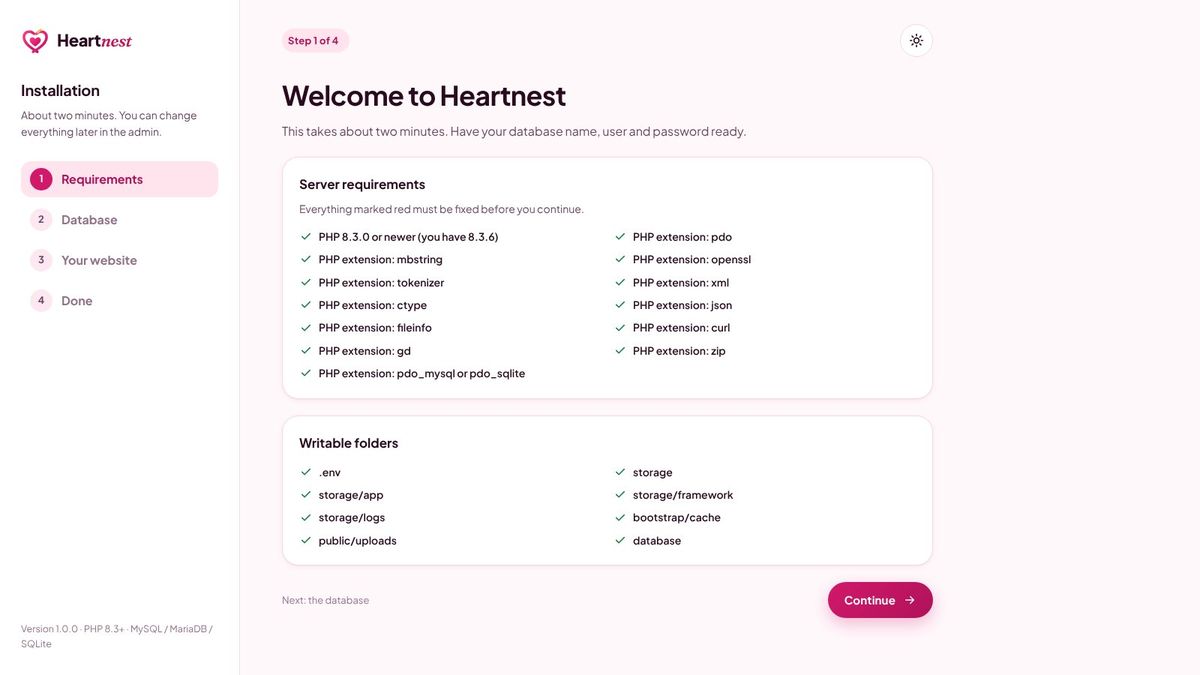
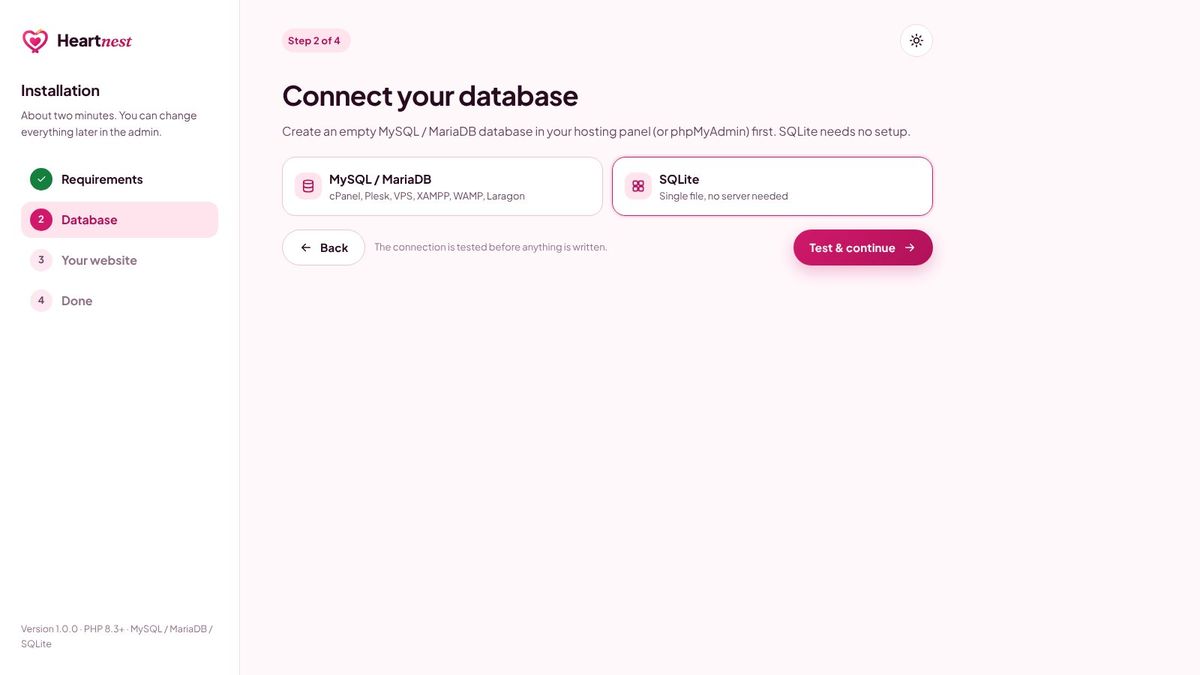
Open your domain after uploading. The installer has four steps and runs each part of the work as a short request, so it finishes on slow shared hosts and Windows too.
Database – MySQL / MariaDB (host, port, name, user, password) or SQLite (no details needed). A database that already holds a Heartnest site is refused, so nothing is overwritten.
Your website – name, address, country, time zone, your owner account, and Import demo data or Start empty.
Done – links to the website, the admin and (with demo data) the demo logins.
Without demo data the installer finishes in a few seconds: plans, coin packs, gifts, prompts, interests, e-mail templates, legal pages, landing sections and the US tax table are ready. The demo import adds the member Daniel Reyes with his matches, chats, calls, likes and visitors, about 1,500 other members (mostly New York), reports, selfies and payments waiting for the team, the demo team and a year of daily totals. It runs in short parts, each well under 3 seconds. Use it to explore Heartnest; for your live site install again with Start empty.
If the browser loses the connection during the import, open the installer again and send the form once more – parts that already finished are not imported twice.
Cron job & scheduled tasks
Heartnest needs no queue worker. One cron job that runs every minute does the background work (cPanel Cron Jobs › Common settings “Once per minute”):
The exact line for your server is shown in Admin › Settings › Maintenance with a Copy button. This one line runs:
Job
When
What it does
hn:calls
every minute
Unanswered calls become “missed” (with an alert), calls past the caller's plan minutes end, abandoned calls are closed. Every call poll does this as well.
hn:daily
every 10 minutes
Plan reminders with a pay link and plan ends (nothing renews), cancels old unpaid orders, lifts ended suspensions and boosts, writes today's totals for the dashboard.
hn:backup --scheduled
2:00 AM
Database backup when automatic backups are on (daily or weekly).
hn:prune
3:41 AM
Removes read notifications after 90 days, old activity entries, old call signals (the call log stays), data exports after 2 days and temporary uploads.
Sign in at /login with the owner account from the installer – you land in the admin.
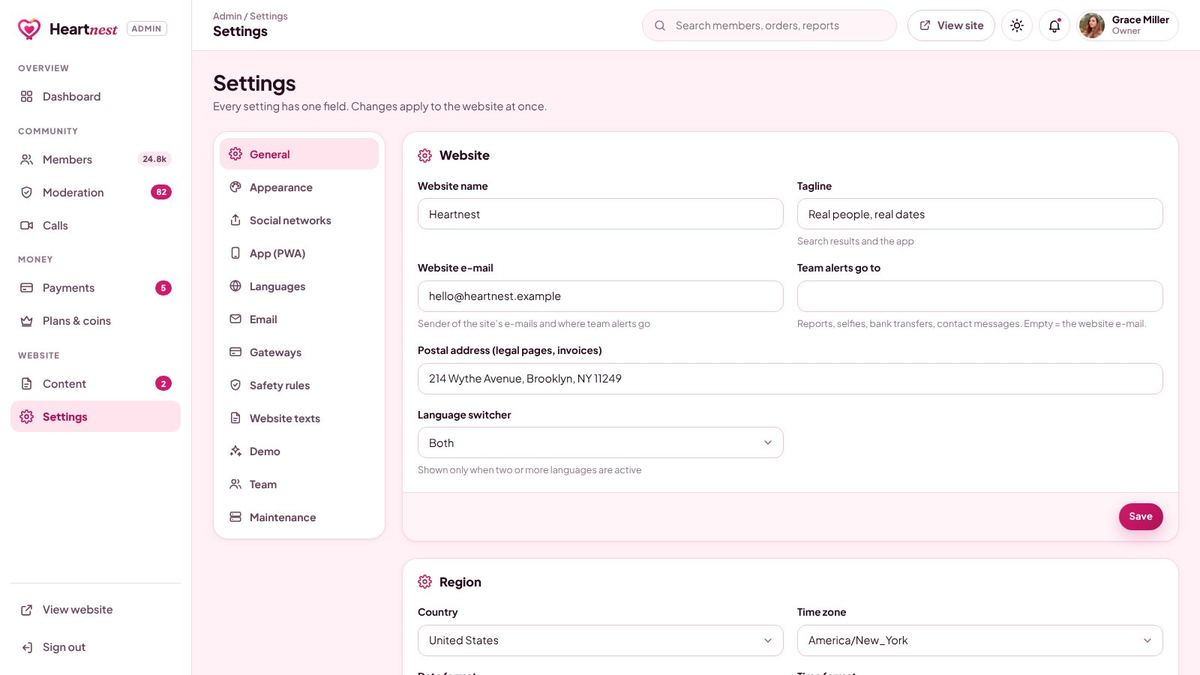
Settings › General: website name, e-mail, address, country, time zone, date format, miles or kilometres.
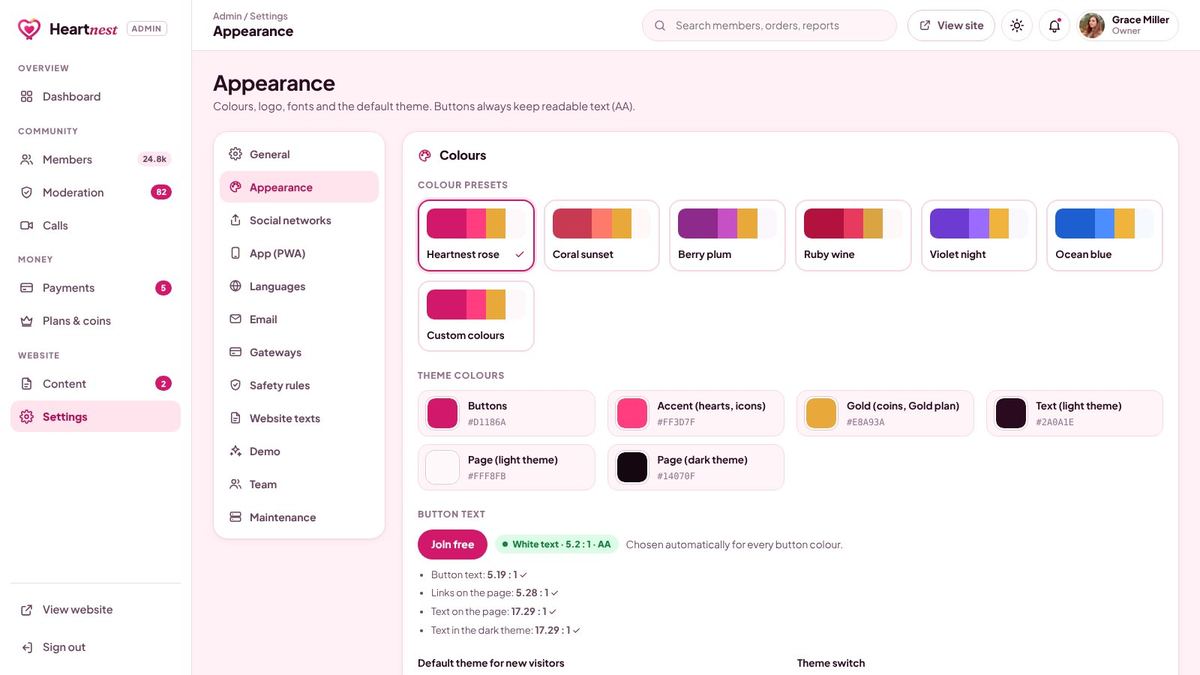
Settings › Appearance: logo, colour preset or your own colours, default theme (light or dark).
Plans & coins: your prices, plan limits, coin packs and gifts.
Settings › Payment gateways: keys of the gateways you use and the webhook URLs shown there; bank details for transfers.
Calls: STUN servers (filled in) and your TURN server.
Settings › E-mail: SMTP, then “Send a test”.
Content: landing sections, FAQ, stories and the legal pages (privacy, terms, cookies, community guidelines) with your details.
Public website
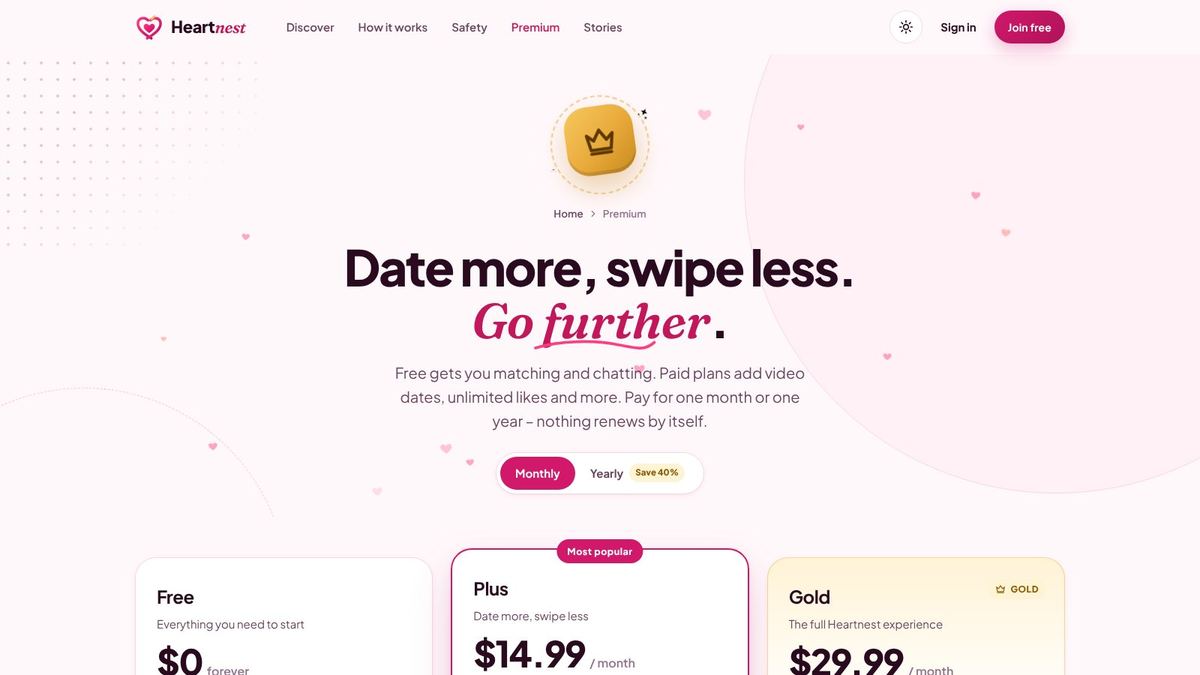
The landing page (hero with a live-looking phone, search bar, how it works, features, verified profiles, video dates, stories, safety, premium, app and FAQ), Premium with the plan comparison table built from the plan fields, Safety (tips by tab and community guidelines), Stories, Help with topics, search, popular guides and a contact form (attachment kept private), legal pages, an offline page and a 404 page – all in the light and dark theme.
Premium – the compare table comes from the plansSafety – tips and guidelines from Settings › Website texts
Join wizard & sign-in
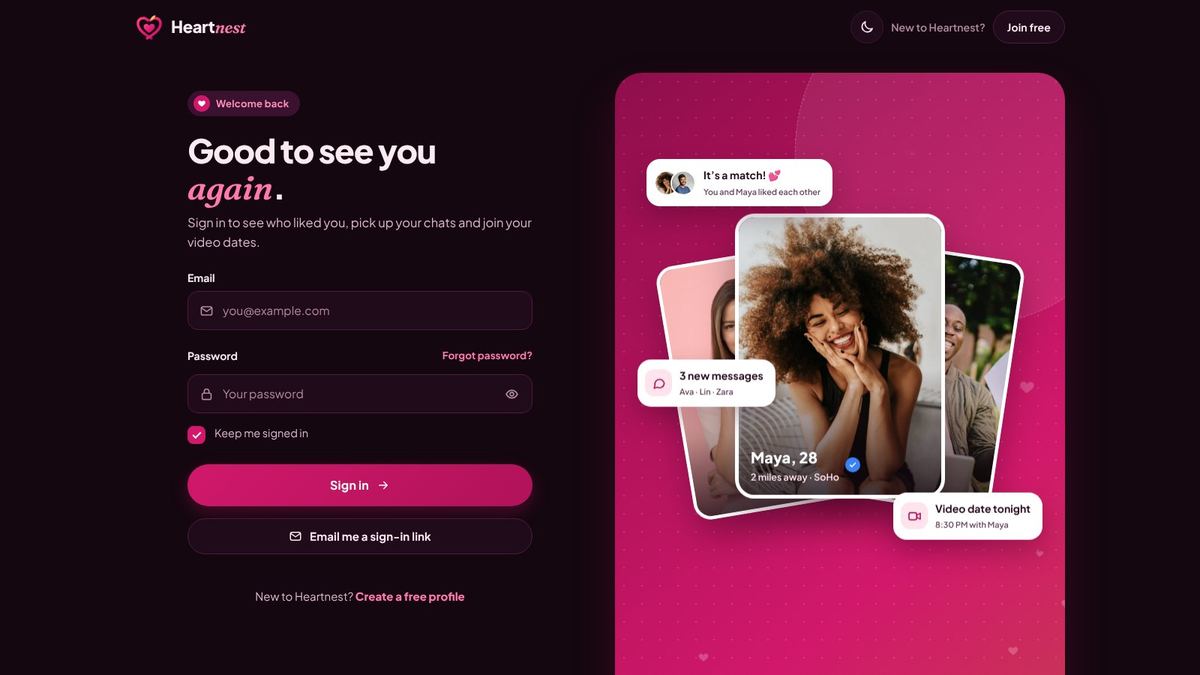
Six short steps: about you (name, birthday – the minimum age is checked on the server, never below 18), who you want to meet, photos (the number in Safety rules), where (place list or “Use my location”), prompts and interests, and the account. Sign-in with e-mail and password, an optional “e-mail me a sign-in link”, password reset and an e-mail confirmation gate: until the address is confirmed, liking, chatting and calling are refused (switch in Safety rules).
Join wizardSign-in – dark theme
Discover & search
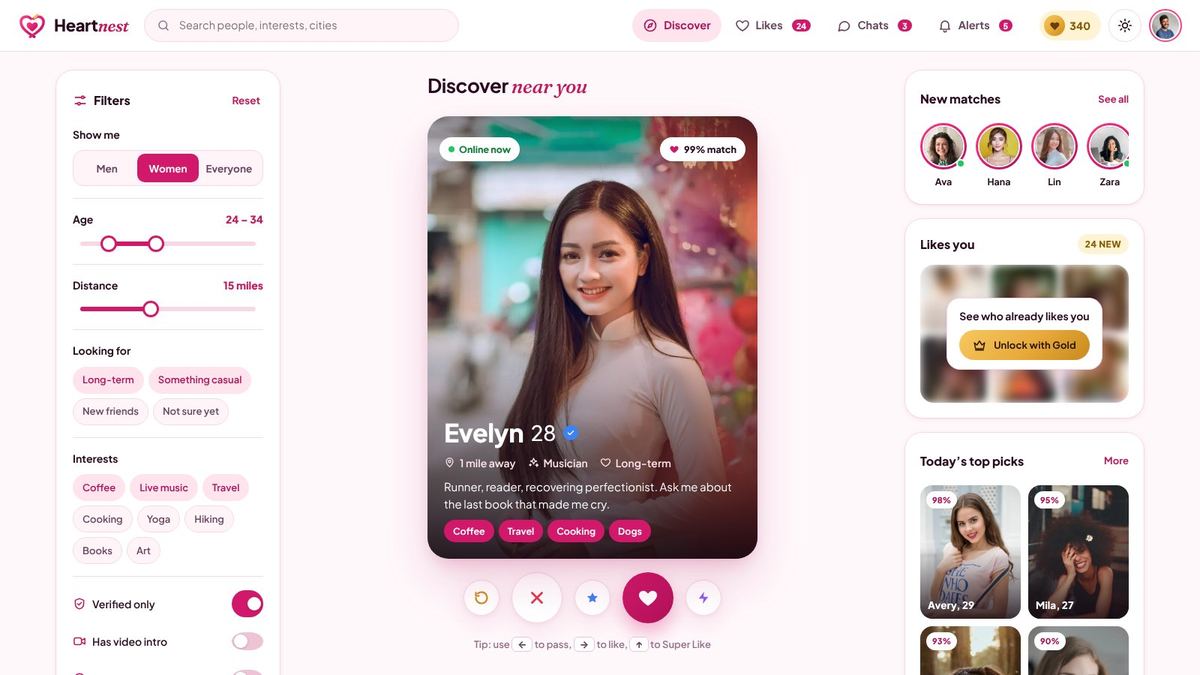
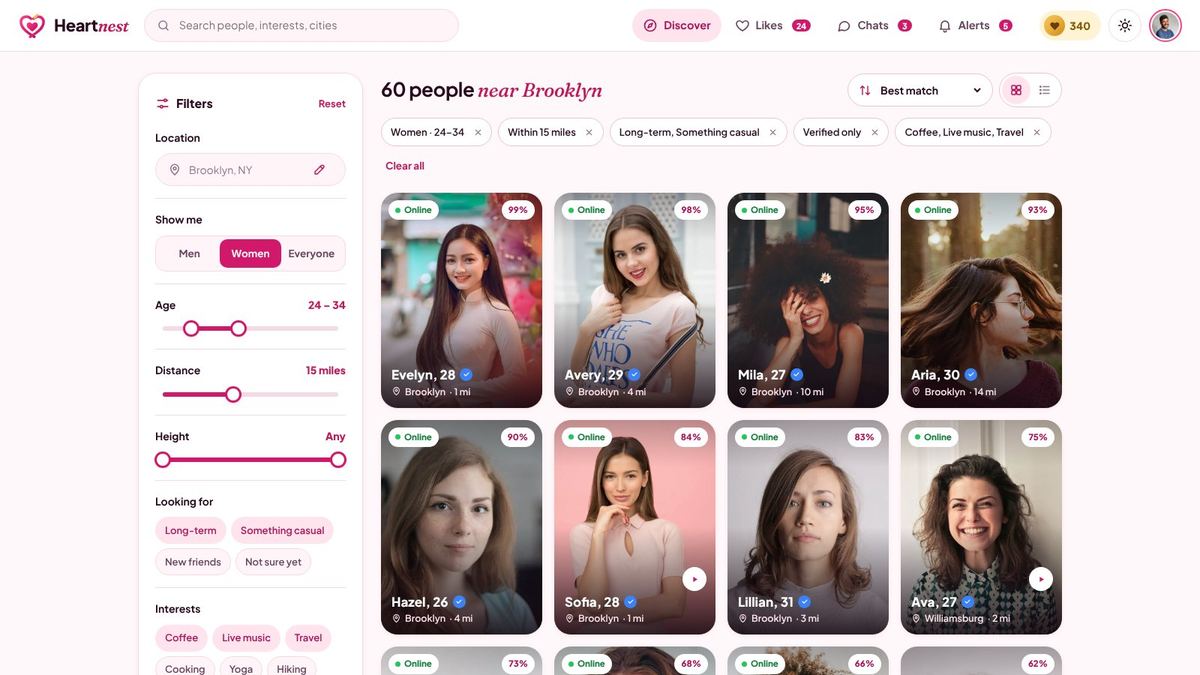
Discover shows one card at a time with photos, distance, match score, prompts and interests. Like, pass, Super Like, rewind (Plus and Gold) and boost (30 minutes at the top of the deck) – with buttons, the keyboard (← → ↑) or a swipe. A mutual like opens the “It's a match” dialog. Filters: show me, age, distance, looking for, interests, verified only, has a video intro, online now and languages (advanced filters per plan). When a limit is reached the member sees the upgrade dialog; when coins run short, the wallet dialog.
Search is a grid with the same filters, sort order and paging. Members who block each other, paused profiles, incognito members and profiles without an approved photo never appear.
Discover – filters, the card deck, new matches, likes and today's top picksSearch grid
Profiles & matching
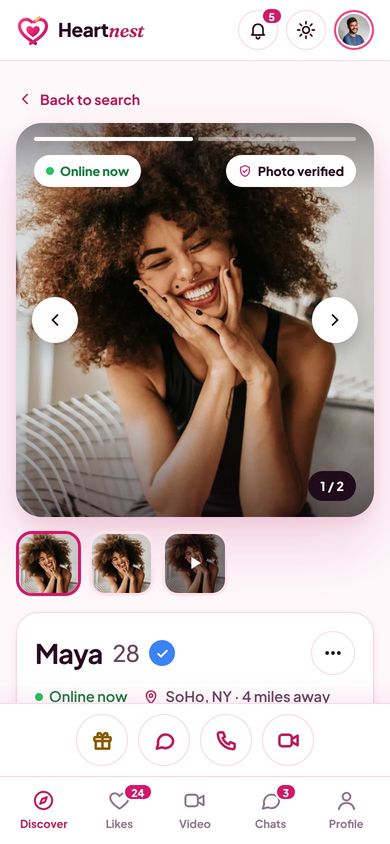
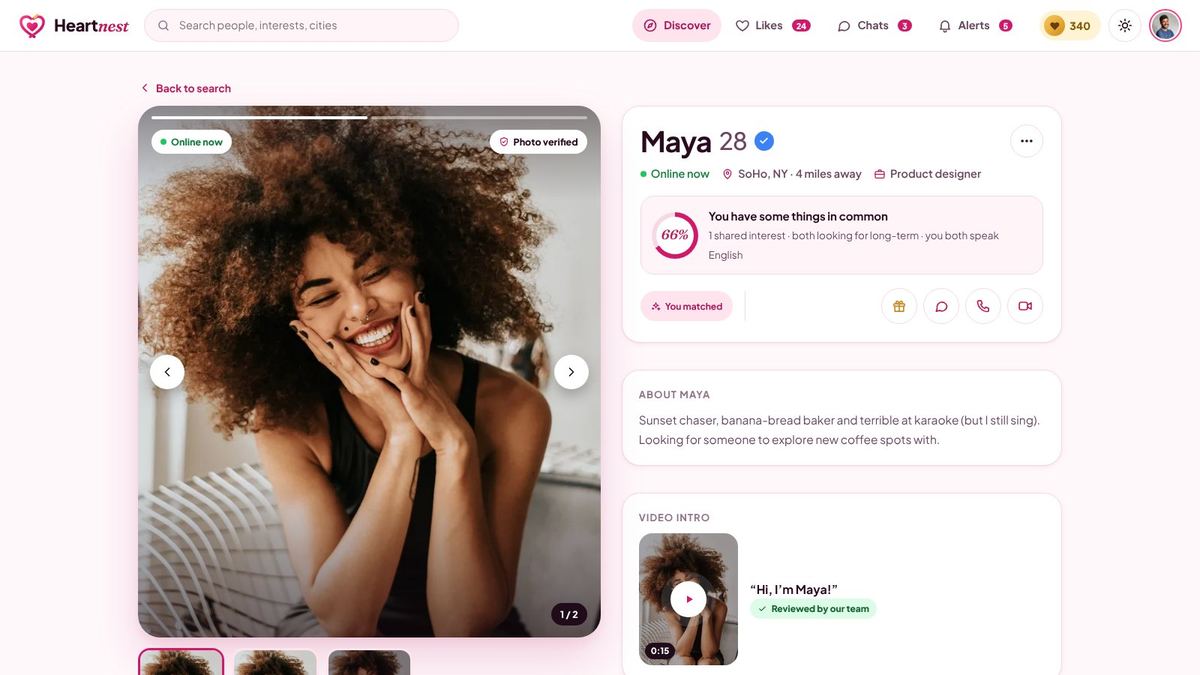
A profile shows the gallery, the video intro, age, distance (rounded, never the exact place), the match score with the things in common, the bio, prompts, details and interests. Gifts, chat and calls open only after a match. Block and report are always there. The match score (40–99 %) weighs shared interests, looking for, languages, age and distance.
Profile with photo-verified badge, things in common and video intro
Likes, visitors & alerts
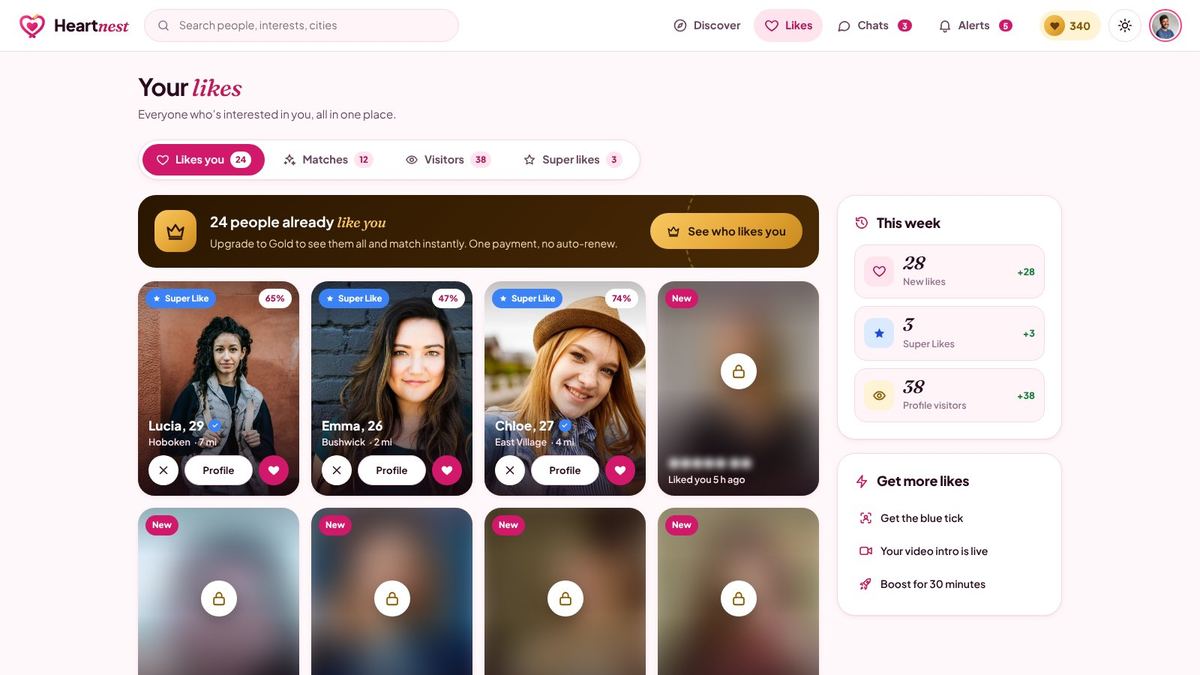
The Likes page has four tabs: likes you, matches, visitors and Super Likes. Without “See who likes you” (Gold by default) the tiles are blurred – the page never contains the liker's name or photo, only a tiny blurred image – with an upgrade banner. Alerts lists new likes, matches, messages, gifts, missed calls, plan reminders and team messages; the bell shows the newest.
Likes – blurred for plans without “See who likes you”
Chat
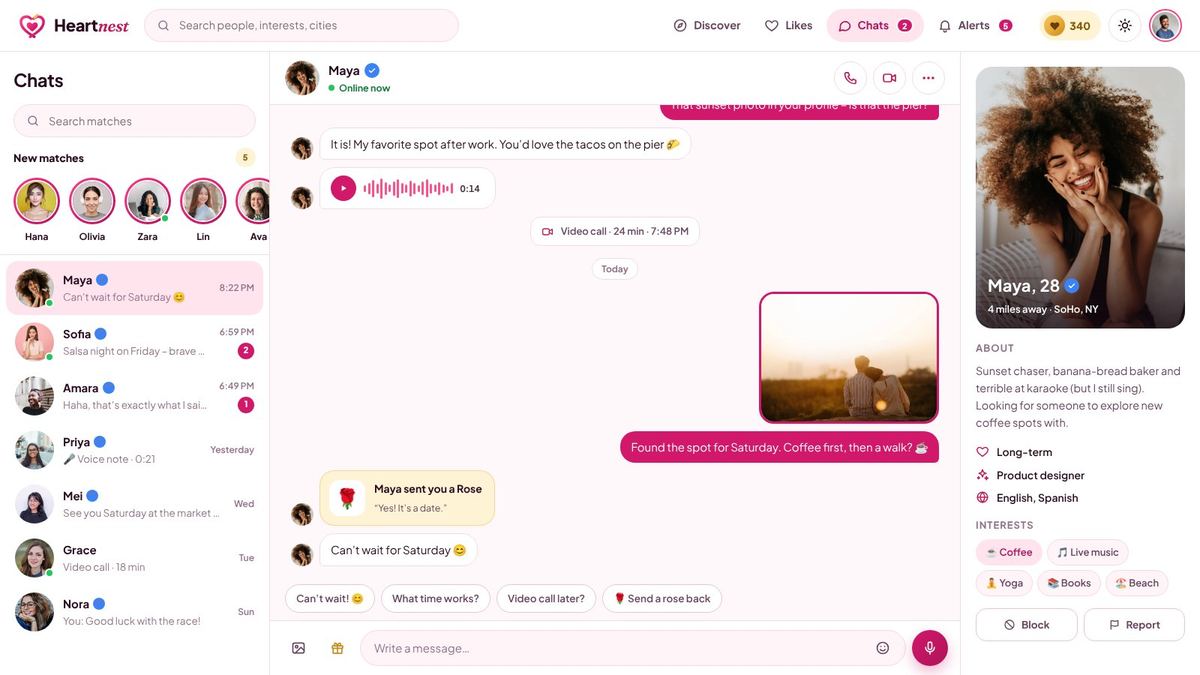
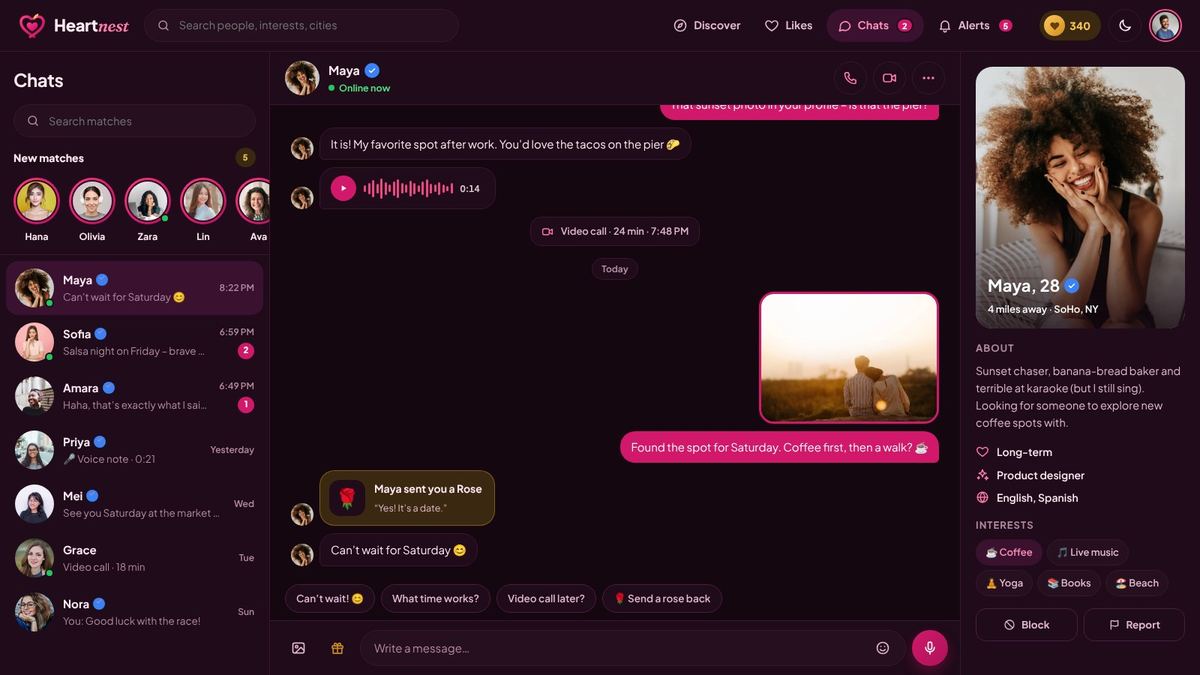
Chats list with search and the new-matches row; a conversation with text, photos, voice notes (recorded in the browser), gifts, call cards, typing, seen ✓✓ (when the reader's plan has read receipts and their privacy switch allows it) and quick replies. Messages arrive by polling that slows down when nothing happens, so no WebSocket server is needed. Unmatch, block and report sit in the chat menu; after a block the private chat media can no longer be opened by either member.
Deleting messages. A long press on a message (phones) or the ⋯ button, right-click or keyboard (computers) opens a small menu. Delete for me hides any message from your own chat only. Delete for everyone works on your own text, photo and voice messages within a time limit: both members then see “This message was deleted” in its place, and the photo or voice note can no longer be opened by either of them (the team can still open it when it handles a report). Gifts and call cards can only be deleted for yourself. Set the time limit in Admin › Settings › Safety › Chat › Delete for everyone time limit (minutes) – default 60, 0 switches “Delete for everyone” off. On phones the photo button sits in the message bar next to the gift button, and the chats list scrolls with the page.
Chat with voice note, video call card, photo, gift and quick repliesThe same chat in the dark theme
My profile, settings & privacy
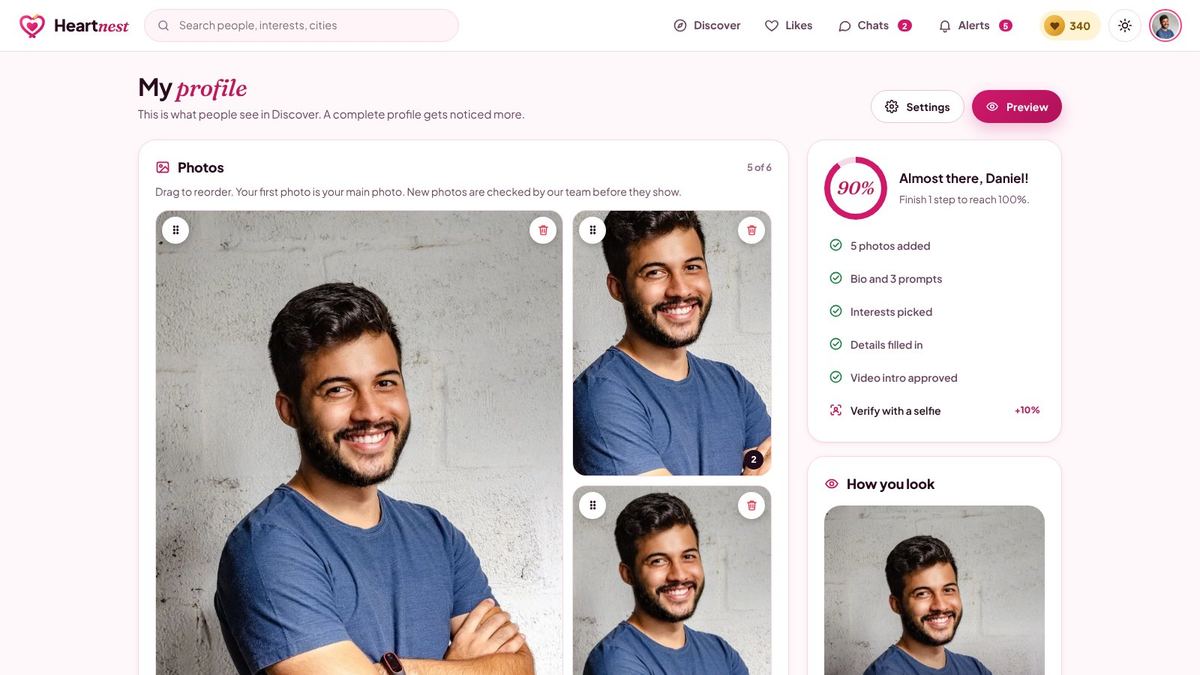
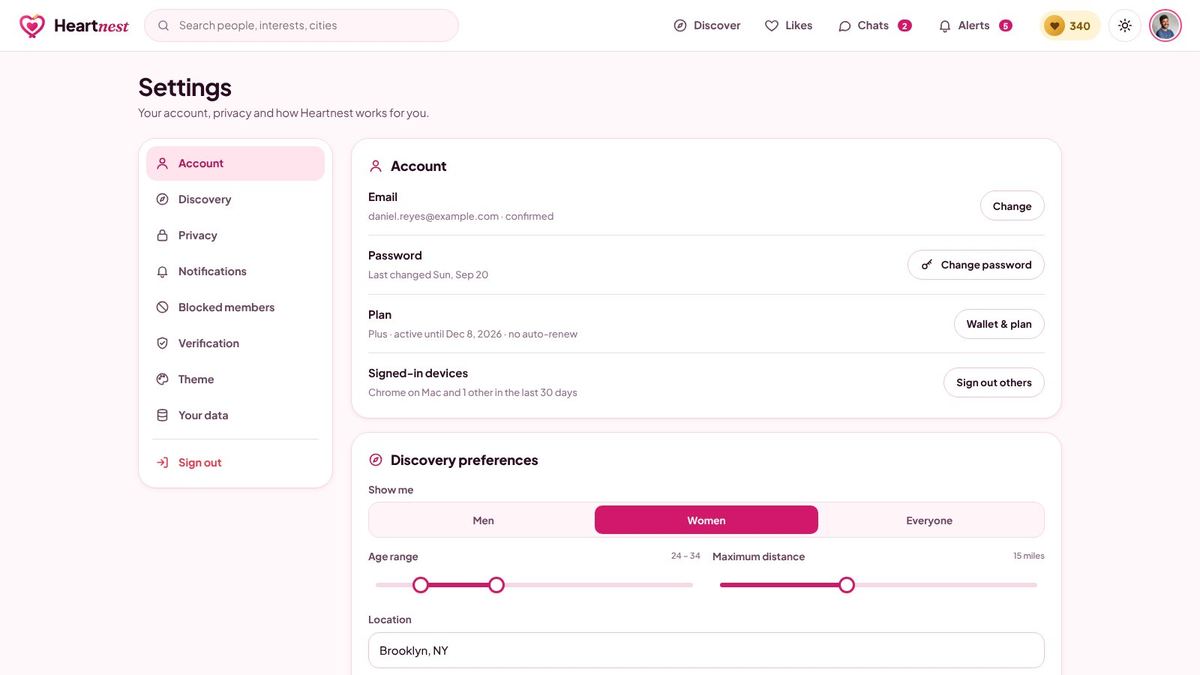
My profile: photos (re-encoded to WebP, drag to reorder, new photos wait for review when photo review is on), video intro (MP4, WebM or MOV – the length is read from the file on the server), prompts, interests, details and bio, with a completeness meter. Settings: account (e-mail change with a signed confirmation link, password), discovery, privacy (incognito and read receipts per plan, hide age, hide distance, pause profile, who can call me), notifications per topic for e-mail and push, blocked members, Download my data (ZIP) and Delete account (type DELETE; orders and invoices stay for the books).
My profile editorSettings – privacy and notifications
Two-step sign-in
Members and the team can protect their account with a second step: their password plus a 6-digit code from any authenticator app (Google Authenticator, Microsoft Authenticator, 1Password, Authy …). No outside service is used – the QR code is drawn by the script itself.
Members: Settings › Two-step sign-in → Set up → scan the QR code (or type the key) → type the 6-digit code → Turn on.
Team (admins and moderators): click your name in the admin top bar or My account in the side menu – the same card in the admin design.
After switching it on, 8 one-time backup codes are shown once – copy or download them. Each one signs in once when the phone is not at hand (“Lost your phone? Use a backup code” on the sign-in step).
New backup codes and turning it off both ask for the current password. Wrong codes on the sign-in step are limited (a short wait after a few tries).
Safety rules
People can join, minimum age (18+), e-mail confirmation, shortest password, photos needed to join, sign-in link, always use https://, photo and video review, photos per profile and size, video length and size, interests and prompts per profile, bio and message length, voice note length, chat photos and voice notes, “Delete for everyone” time limit, quick replies, “online now” minutes, selfie poses, auto-hide after reports, safety tips before a date.
In demo mode the card is shown, but switching it on is disabled so the shared demo accounts keep working for everybody.
Selfie verification
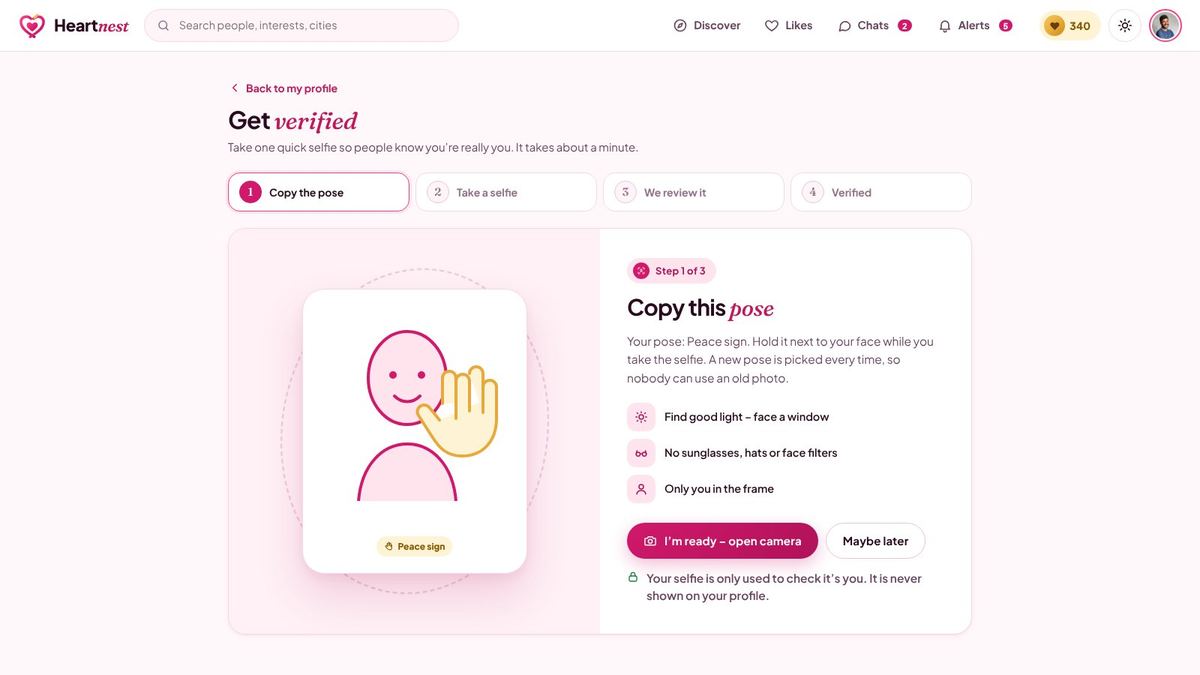
The member copies a pose (the list is in Safety rules) and takes a selfie with the camera – or uploads a photo when the camera is not available. The team compares it with the profile photos in Moderation › Selfies; approval adds the blue tick. Selfies are private files only the team can open.
Selfie verification
Video & voice calls
Matches call each other from the chat or the profile. Calls are peer-to-peer WebRTC: audio and video go directly between the two browsers (or through your TURN server when a direct path is not possible); your hosting only passes the short connection messages (signalling over HTTPS polling). The ring shows on every page of the callee, with a ring tone.
Who can start a call: the caller's plan sets the longest call (Plus 60 min, Gold 120 min by default); Free members can answer but not start calls. Each member chooses who can call them (matches, verified matches or nobody).
In the call: timer with the time left, mute, camera on/off, switch camera, in-call chat, gifts and reactions; quality stats are stored for the call log.
After the call: rating chips (editable list), a call card in the chat; missed calls become alerts.
Block or unmatch ends a running call at once; calls are refused between members who are not matched, blocked or inactive.
Browsers allow the camera and microphone only on https:// pages (and on localhost). The site sends Permissions-Policy: camera=(self), microphone=(self).
A video call with timer, controls, in-call chat and gifts
STUN & TURN servers
Admin › Calls › STUN / TURN servers. STUN servers help the two browsers find each other – the public Google STUN servers are filled in and work for most connections. A TURN server relays the call when both members are behind strict networks (some mobile carriers, offices); without one, a few calls may not connect.
Install coturn on a small VPS: apt install coturn.
In /etc/turnserver.conf: listening-port=3478, fingerprint, use-auth-secret, static-auth-secret=YOUR-LONG-SECRET, realm=turn.example.com, and a TLS certificate for port 5349 if you like. Open UDP/TCP 3478 (and 49152–65535 UDP for relays).
In the admin: TURN server addresses one per line (for example turn:turn.example.com:3478?transport=udp and turn:turn.example.com:3478?transport=tcp), the same shared secret, and how long the credentials last.
Click Test servers. Members get short-lived TURN credentials made from the secret – the secret itself never reaches the browser.
Admin › Calls – call log with quality, STUN / TURN servers, call limits per plan and call rules
Plans (no auto-renew)
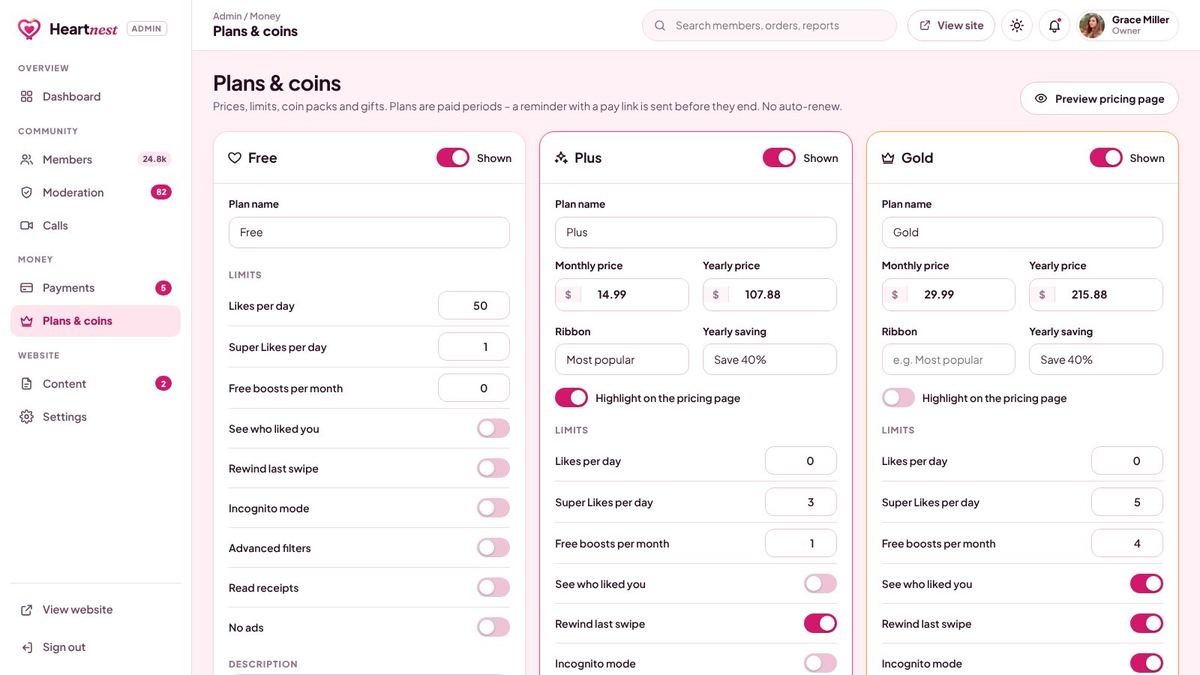
Admin › Plans & coins. Three plans are ready – edit names, colours, prices and every limit, or add more:
Limit
Free
Plus
Gold
Price
$0
$14.99 / month · $107.88 / year
$29.99 / month · $215.88 / year
Likes per day
50
Unlimited
Unlimited
Super Likes per day
1
3
5
Boosts per month
–
1
4
Rewind, advanced filters, no ads
–
Yes
Yes
See who likes you, read receipts, incognito
–
–
Yes
Longest call (start calls)
Answer only
60 min
120 min
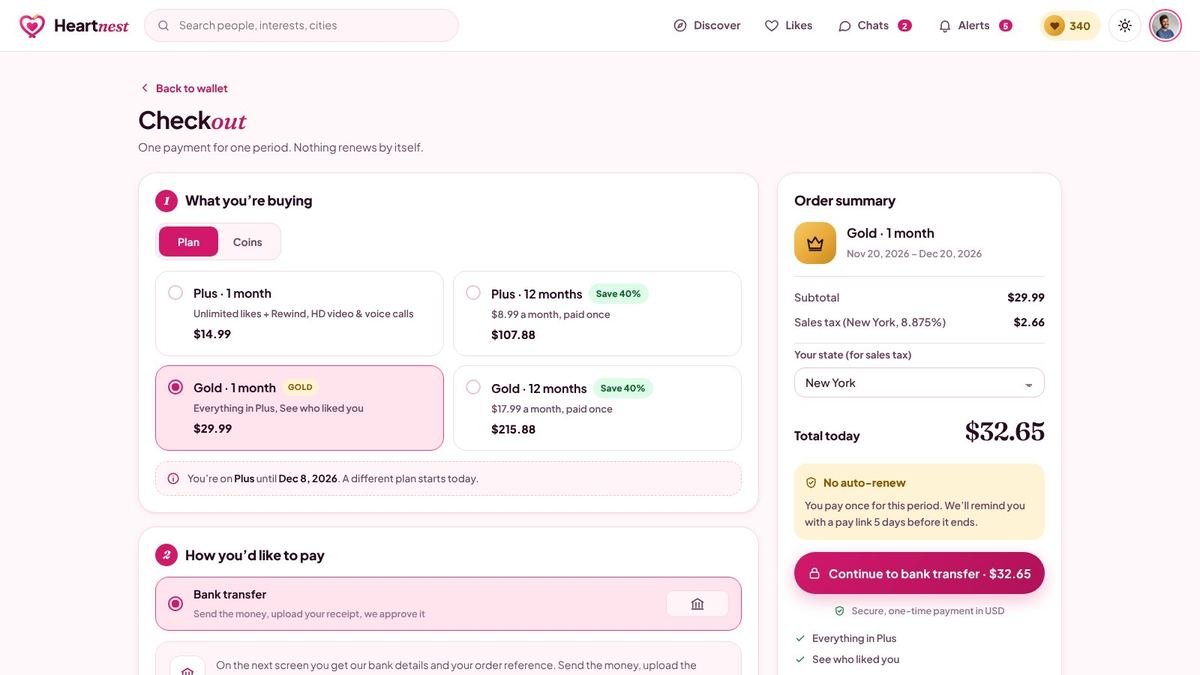
A plan is paid for a month or a year at a time. No auto-renew: a few days before the end (setting “Plan reminder before the end”) the member gets an e-mail and an alert with a pay link; buying again adds the time on top. The plan or coins are given only after a verified payment. Admins can also grant plan days to a member (Members › member › Plan days).
Admin › Plans & coins
Coins, gifts, boosts & Super Likes
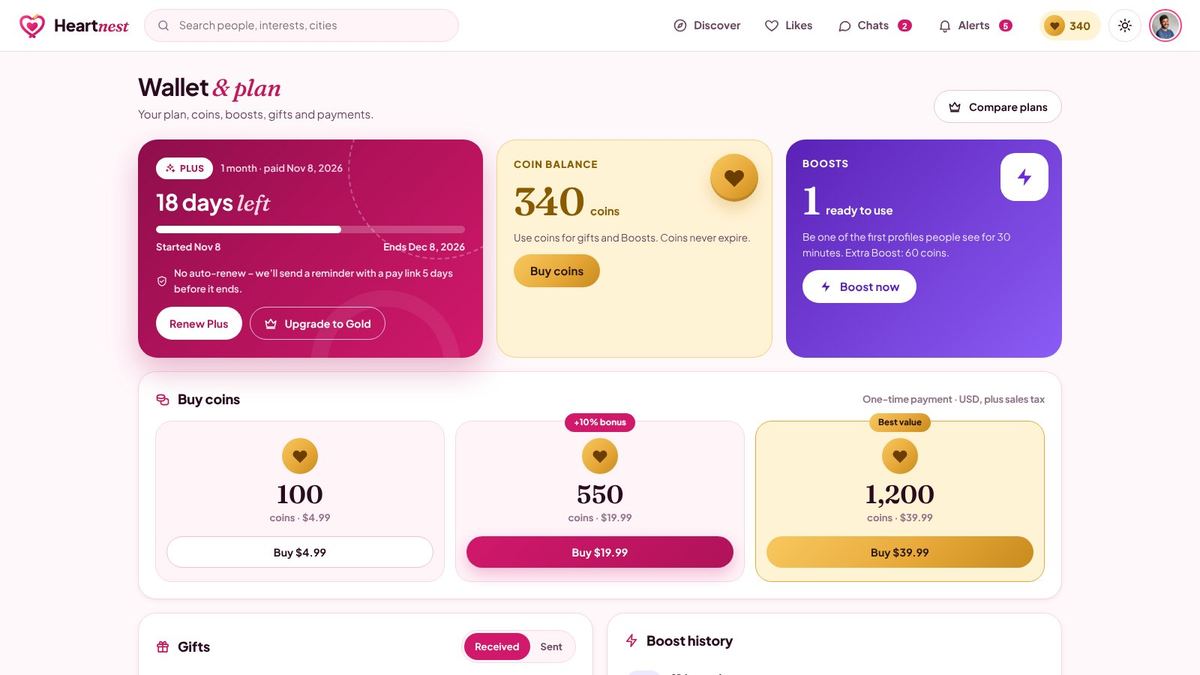
Coin packs: 100 coins $4.99 · 550 coins $19.99 · 1,200 coins $39.99 (editable, with labels and a featured pack).
Gifts (in chat, on profiles of matches and during calls): Rose 10, Love note 15, Coffee 25, Bouquet 50, Teddy 80 coins – add your own with an emoji icon.
Boost: 30 minutes at the top of Discover – first from the plan's monthly boosts, then for 60 coins (both in Plans & coins).
Extra Super Likes: bought with coins (coin price in Plans & coins, pack size in Settings › Discovery).
The Wallet shows the balance, the coin history, plan time and invoices. Every coin movement is in the ledger; admins can add or remove coins with a reason (never below 0).
WalletCheckout – plan or coins, state for sales tax, gateway
Payment gateways & webhooks
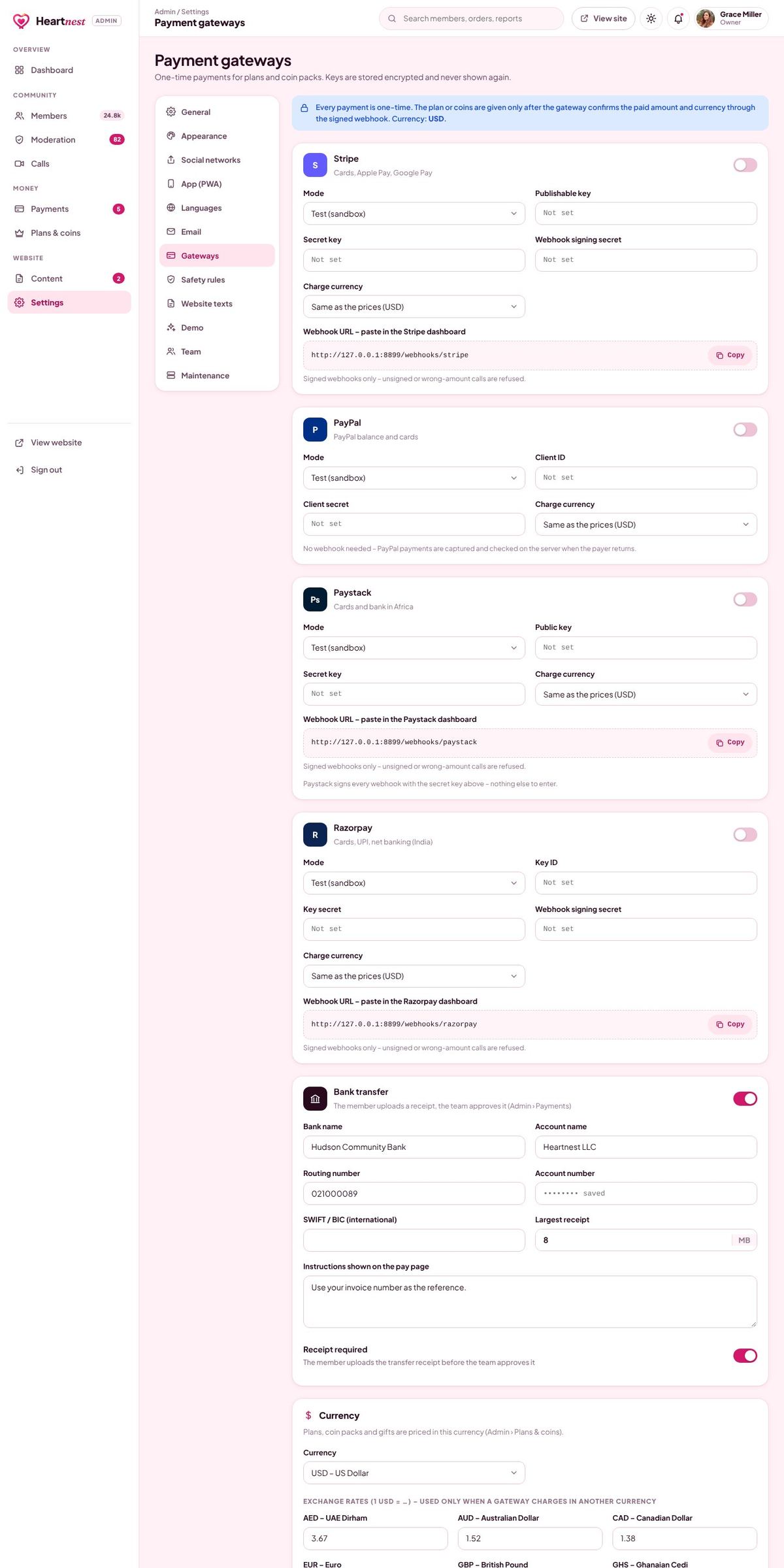
Admin › Settings › Payment gateways. Each gateway has on/off, test or live mode, its keys (stored encrypted and never shown again – leave a field empty to keep the saved key), the charge currency and the webhook URL with a Copy button. Every payment is checked on the server: the paid amount and currency must match the stored order, each gateway transaction id is used once, and the order is completed only once, under a lock.
No webhook needed – the order is captured and checked with the PayPal API when the member returns
–
Paystack – cards and bank (Nigeria, Ghana, Kenya, South Africa)
Public key, secret key
https://your-domain.com/webhooks/paystack
charge.success (signed with your secret key, confirmed again with the verify API)
Razorpay – cards, UPI, net banking (India)
Key ID, key secret, webhook secret
https://your-domain.com/webhooks/razorpay
payment.captured, order.paid
Bank transfer
Your bank details (shown to the member)
–
Receipt upload + admin approval
Webhooks with a wrong or missing signature are refused (fail closed). Test mode uses the gateways' sandbox keys; switch to Live and paste the live keys when you are ready.
Settings › Payment gateways
Bank transfer
The member sees your bank details and the order reference, transfers the amount and uploads the receipt (image or PDF, kept private). The order waits in Admin › Payments › Bank transfer receipts to approve. Approve gives the plan or coins through the same completion as the online gateways; Reject sends the member your note. The team gets an alert for every new receipt.
US sales tax & invoices
Admin › Plans & coins › US sales tax: on/off, the tax name on invoices and every US state with its base rate, each switched on or off (New York 8.875 % is on by default). The member picks the state at checkout; the tax line is added to the order and printed on the invoice. Invoices are printable HTML pages (member: Wallet › Invoices; admin: Payments › order › Invoice) with your legal name, address, invoice prefix and footer from Settings › General.
Admin dashboard
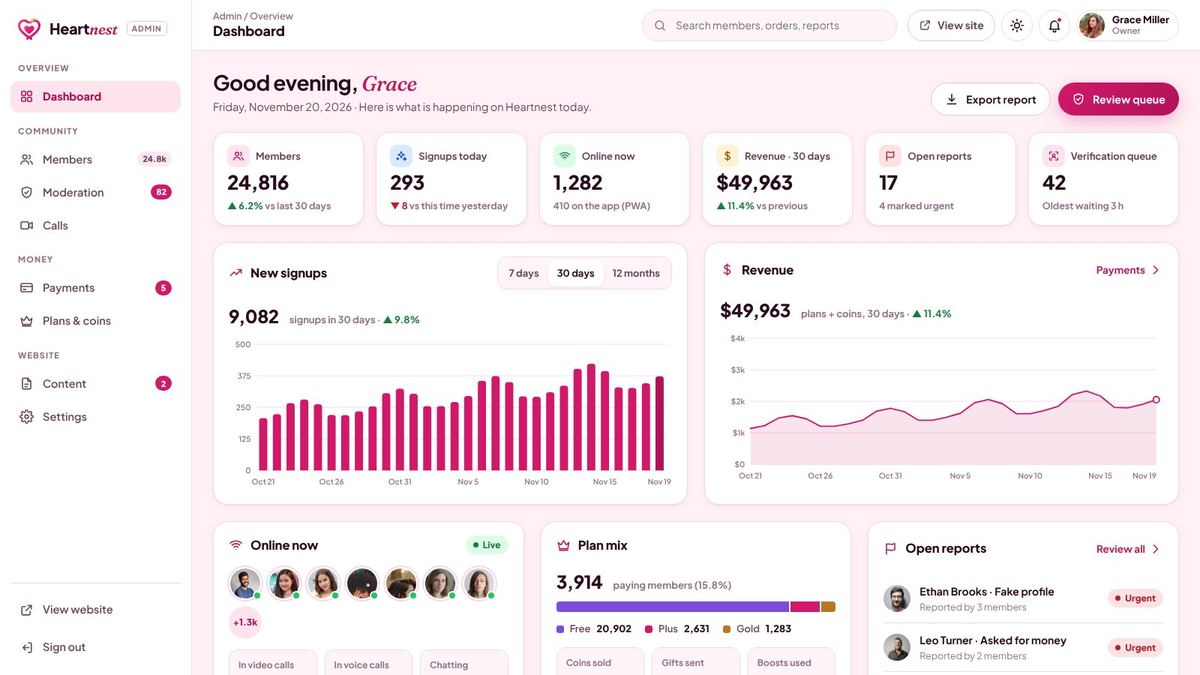
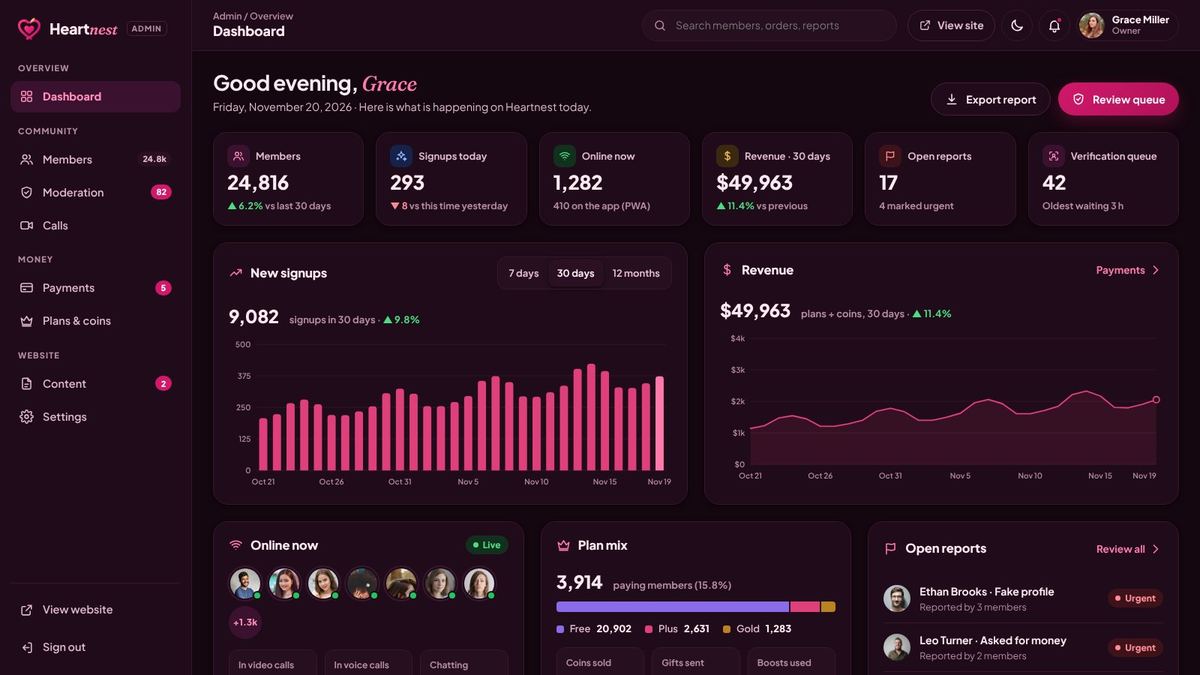
Members, sign-ups today (compared with yesterday up to the same time of day), online now (and on the app), revenue for 30 days, open reports (urgent marked) and the verification queue; the sign-ups chart (7 days, 30 days, 12 months), revenue, online now with members in video calls, voice calls and chatting, plan mix, coins sold, gifts and boosts, the newest reports, payments and selfies. Totals are read from the daily totals table, so the dashboard stays fast with any number of members. Moderators see the same page without money.
Admin dashboardAdmin dashboard – dark theme
Members
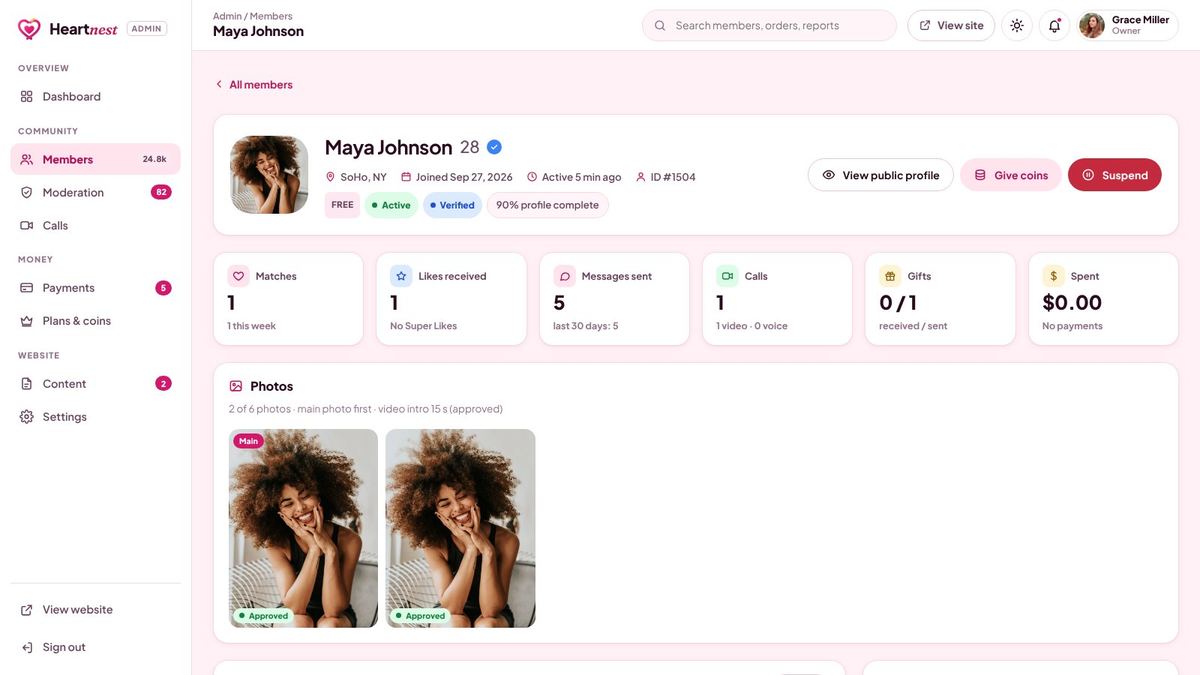
Search and filters (status, plan, gender, verified, joined), bulk actions and CSV export. The member page shows the profile, photos, plan and plan days (grant days), the coin ledger (add or remove coins with a reason), reports by and about the member, warnings, suspend (days) and ban with a reason (the member gets an e-mail), private team notes and the sign-in history.
Member detail
Moderation
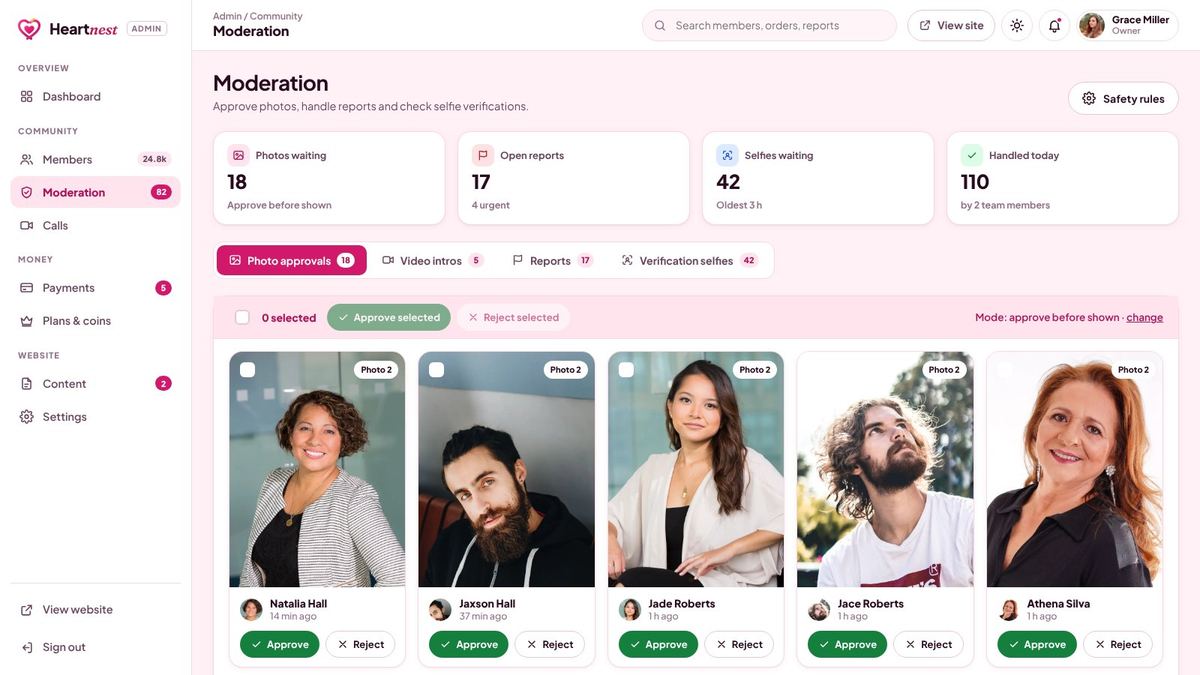
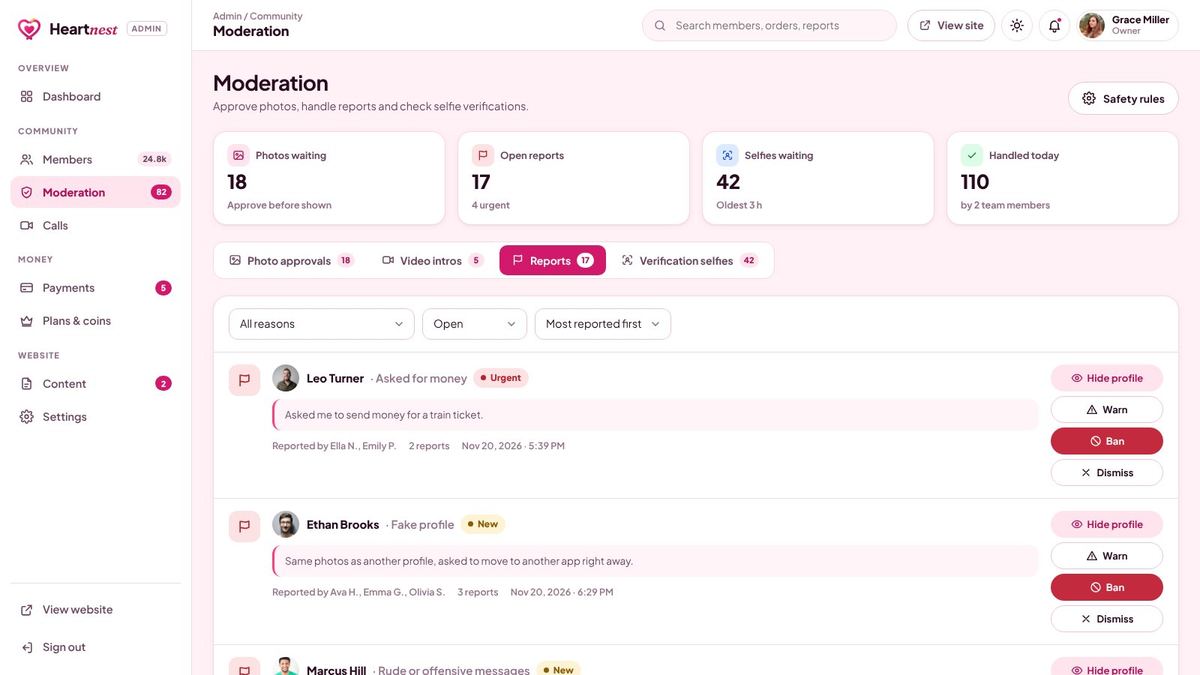
Four queues with counters in the side menu: Photos (approve or reject, with the reason sent to the member), Video intros, Reports (urgent reasons first – scam, underage, threats; open the chat lines or call that was reported; warn, suspend, ban or dismiss) and Selfies (pose next to the profile photos; approve adds the blue tick). A profile with many open reports is hidden from Discover automatically (Safety rules). Every action is logged.
Moderation – photosModeration – reports
Calls
Calls today, minutes and average length, the call log (video or voice, length, quality, P2P or relayed, how it ended) with a “problems” filter and CSV export, STUN / TURN servers with a test, call limits per plan and the call rules (calls on/off, ringing time, rating chips, quick replies when declining).
Payments & refunds
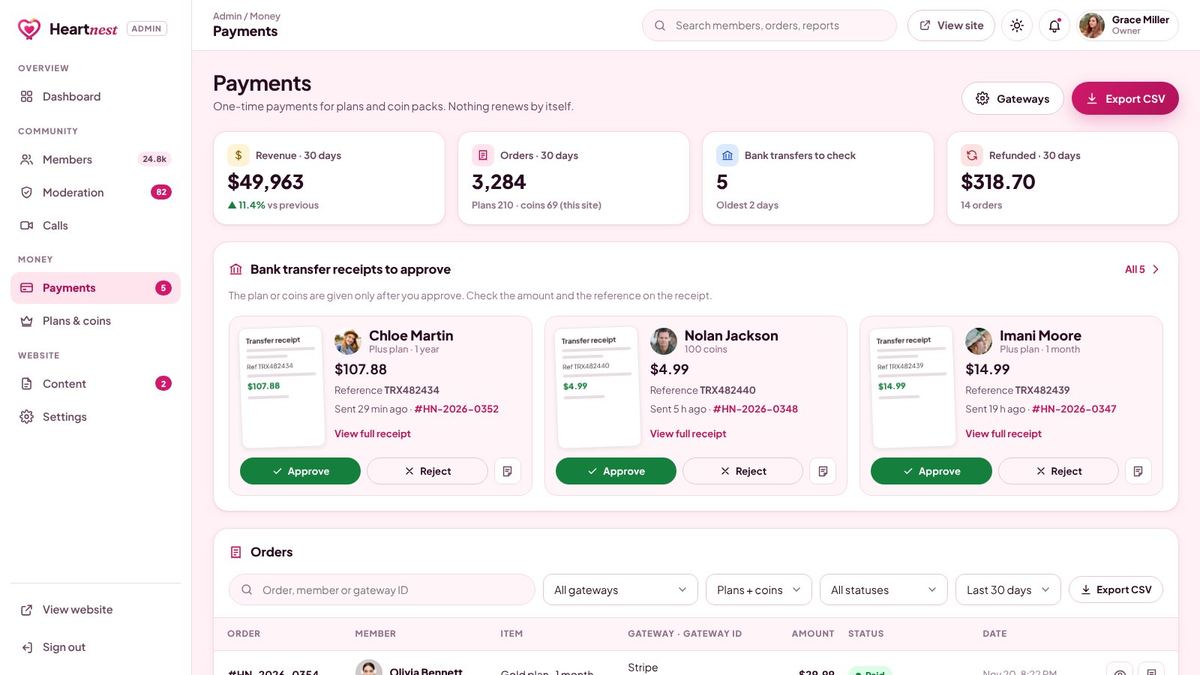
Revenue, orders, transfers to check and refunds; bank receipts to approve; every order with gateway, gateway ID, amount, tax and status, filters and CSV export. An order page shows the payment history and lets you mark an order paid by hand (with a reference), cancel an unpaid order or Mark refunded after you refunded it at the gateway or bank – the plan days or unused coins are removed and the member gets an e-mail.
Admin › Payments
Content
Home sections: every landing section with eyebrow, heading (with an italic accent word), intro, items one per line, button; drag to reorder, hide or show.
FAQ by help topic, Stories (couples with photo), Pages (privacy, terms, cookies, community guidelines and your own pages with the rich-text editor), Messages from the contact form (attachment, reply by e-mail) and Lists (prompts, interests, report reasons …).
Admin › Content › Home sections
Every settings area
Area
What you set there
General
Website name, tagline, e-mail, team alerts address, postal address, country, time zone, date and time format, miles or kilometres, legal name, invoice prefix and footer, SEO title, description, share image, sitemap, language switcher.
Website texts
Logo word mark, header menu, sign-in link and button, member search placeholder, footer text, columns and copyright line, sign-in and join texts and photo, cookie notice, iPhone install hint, offline page, contact topics, help topics, popular searches and guides, safety tips and community guidelines.
Appearance
Logo, favicon, colour presets (Heartnest, Coral, Berry, Ruby, Violet, Ocean) or your own colours – button text colour is chosen automatically for contrast – and the default theme.
Safety rules
People can join, minimum age (18+), e-mail confirmation, shortest password, photos needed to join, sign-in link, always use https://, photo and video review, photos per profile and size, video length and size, interests and prompts per profile, bio and message length, voice note length, chat photos and voice notes, quick replies, “online now” minutes, selfie poses, auto-hide after reports, safety tips before a date.
Discovery
Default age range and distance, distance choices, results per page, highest age on the sliders, Super Likes per purchase, today's top picks, “New” badge days.
Calls (on the Calls page)
Calls on/off, ringing time, rating chips, quick replies when declining, STUN and TURN servers, TURN secret and credential lifetime.
Billing (in Gateways)
Cancel unpaid orders after, plan reminder days.
Plans & coins (own page)
Plans and limits, coin packs, gifts, boost price and length, Super Like price, US sales tax by state.
Payment gateways
Stripe, PayPal, Paystack, Razorpay, bank transfer, currency.
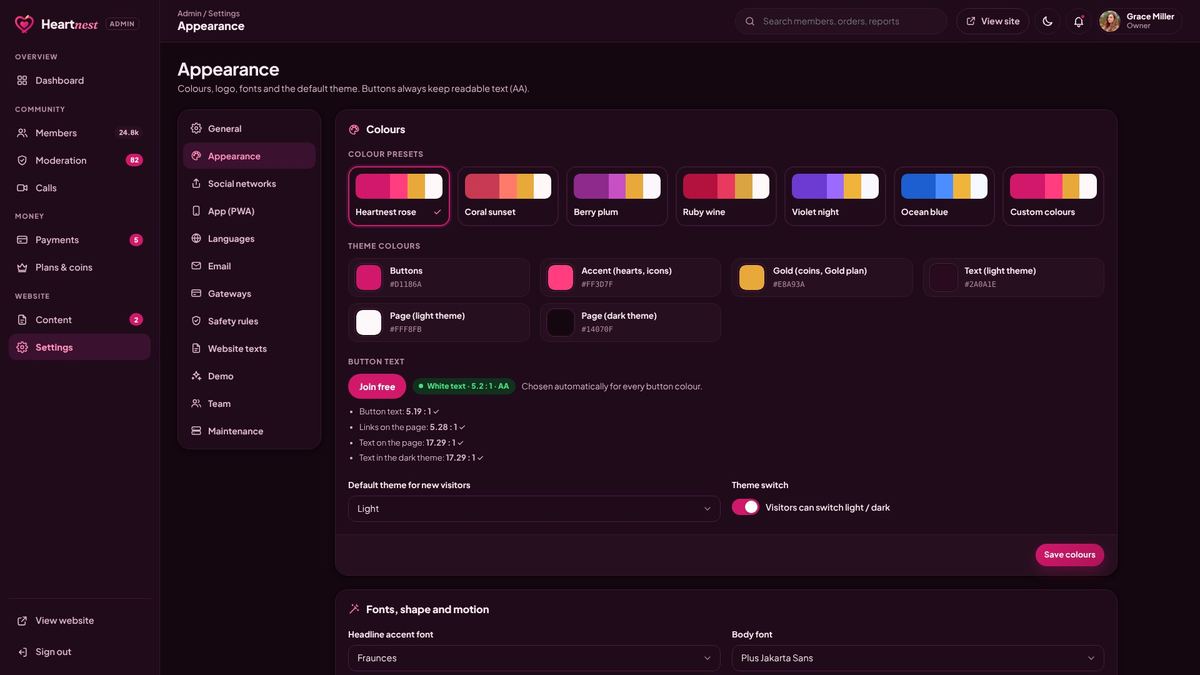
Heartnest opens in the light theme; members switch to dark with the sun / moon button and the choice is remembered in their browser (no flash on load). The default theme for new visitors is set in Appearance. Every colour – brand, accent, gold, backgrounds of both themes – comes from the preset or your own pickers, so the whole site, member area and admin follow your brand.
Appearance – presets and pickersThe admin in the dark theme
Social networks
Settings › Social networks: the site's own links in the footer, the help page and the e-mails. A built-in list with icons (Facebook, Instagram, X, YouTube, TikTok, LinkedIn, WhatsApp, Phone, Telegram, Threads, Pinterest, Snapchat, Discord, E-mail, Website …) plus Add network with a name, link or number and your own icon (SVG cleaned, PNG / WebP re-encoded). Switch each on or off, drag to reorder, replace icons; WhatsApp and phone numbers are normalised.
Settings › Social networks
App (PWA) & push alerts
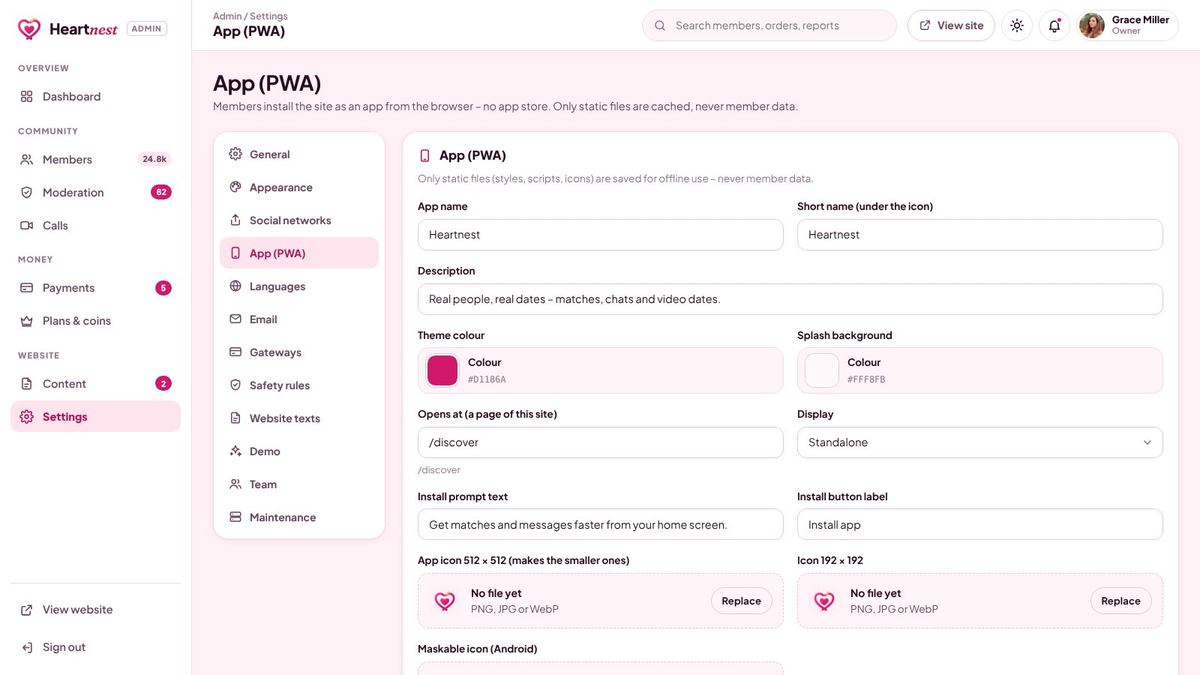
Settings › App (PWA): app name, short name, icons, theme and background colours, start page and the install texts. Members install Heartnest from the browser (“Install app” on Android and desktop, an “Add to Home Screen” hint on iPhone). The service worker caches only the static files (never private data) and shows the offline page. Push alerts (likes, matches, messages, calls) use Web Push with your site's own keys, created automatically – no outside account needed.
Settings › App (PWA)
Languages & auto-translate
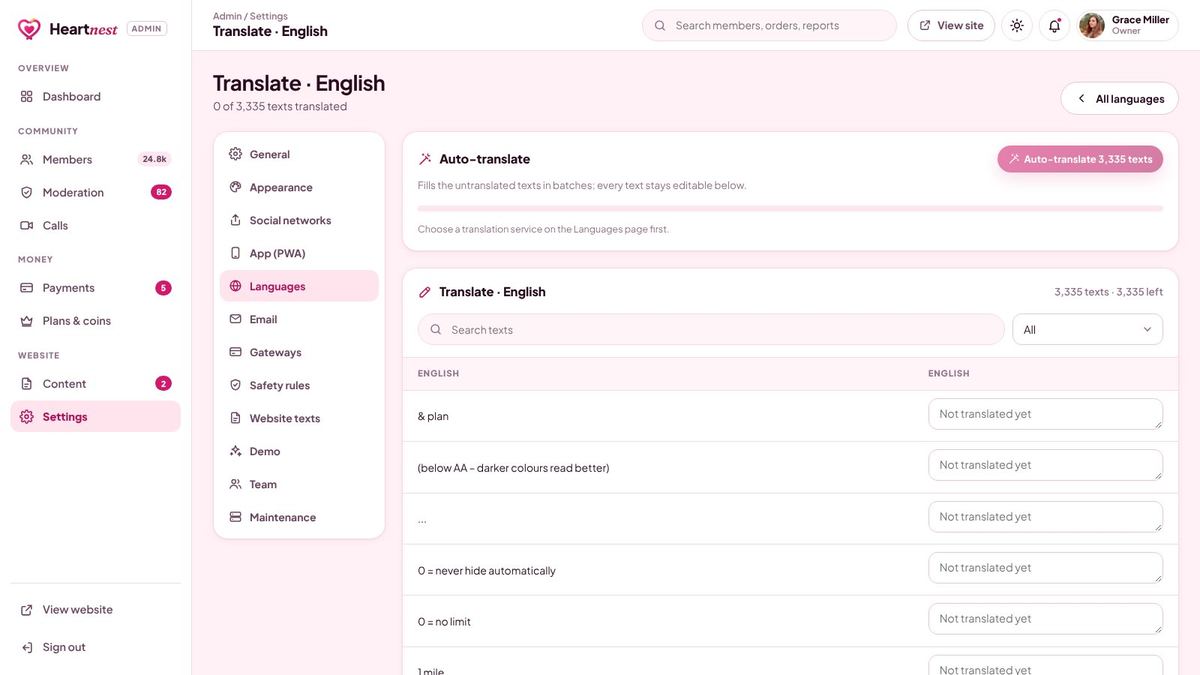
Settings › Languages: add a language (for example Spanish, es, left-to-right or right-to-left), set the default and open the translation editor. Every text visitors and members see is listed – the interface and the texts from settings and the database (landing sections, plan names and lines, FAQ, help topics, lists) – and new database texts appear in the list at once. Auto-translate fills the empty lines with DeepL, Google Cloud Translation or LibreTranslate (your key, stored encrypted); every line stays editable. The language switcher shows when two or more languages are active.
Translation editor
E-mail & templates
Settings › E-mail: SMTP host, port, encryption, user, password (stored encrypted), sender name and address, and Send a test. Settings › E-mail templates: 30 templates (confirm e-mail, sign-in link, password reset, new match, new message, missed call, gift, plan reminder, payment received, bank transfer approved or rejected, refund, warning, suspension, ban, photo rejected, verification approved, team alerts …) with subject, text and the placeholders listed next to each. E-mails use your logo and colours.
Team & moderators
Settings › Team: invite admins and moderators, choose the sections each one may open (dashboard, members, moderation, calls, payments, plans & coins, content, settings), reset a password or remove an account. Moderators can never open payments, plans, calls setup or settings.
Maintenance & backups
A calm “back soon” page for visitors while the team keeps working (webhooks keep running), Back up now and automatic daily or weekly database backups (how many to keep), the update card, the cron line with Copy, the admin address and the activity log of every admin action.
Security & privacy
Passwords hashed with bcrypt; sign-in and form throttles; CSRF on every form.
Members only ever reach their own matches, chats, calls, orders and invoices; chat media, selfies, receipts and exports are private files checked on every request.
Uploaded photos are re-encoded (metadata such as GPS removed); files are checked by their first bytes; SVG icons are cleaned.
Gateway, SMTP, TURN and translation keys are stored encrypted and never shown again.
Security headers, including Permissions-Policy: camera=(self), microphone=(self), geolocation=(self).
Profiles show rounded distances only; blocked members never see each other anywhere.
Demo mode
To run a public demo like ours: install with demo data, then in .env set
DEMO_MODE=true
APP_DEBUG=false
and run php artisan hn:demo-reset --force once. With the cron job, hn:demo-today keeps “today” alive every minute (online now, new likes and messages, today's totals, waiting times) and hn:demo-reset reloads the demo every 6 hours. In demo mode the admin is read-only, members can still swipe, chat, send gifts and try calls, uploaded files are not kept, no e-mails or pushes are sent, and the sign-in page shows the one-click logins.
Updating
Back up the database (Maintenance › Back up now, or phpMyAdmin › Export) and the folders public/uploads and storage/app.
Upload the files of the new version over your installation (keep .env, storage and public/uploads). The update package of each version contains only what changed and an UPDATE-README.txt.
Run the update: Settings › Maintenance › Update shows “Update waiting” – click Run update. It applies the database changes, adds new settings and clears the caches. Command line alternative: php artisan hn:update.
Press Ctrl+F5 once in your browser. Members, chats, photos, settings and uploads are kept.
Move to another domain
Back up and copy all files, including .env, storage/app and public/uploads, to the new hosting; import the database there.
In .env set APP_URL=https://your-new-domain.com and the new database details. Keep APP_KEY – it decrypts the saved gateway, SMTP and TURN keys.
Delete the files in bootstrap/cache (except .gitignore), add the cron job on the new server and issue the SSL certificate.
Update the webhook URLs in Stripe, Paystack and Razorpay. Installed apps (PWA) need to be installed again from the new address.
Artisan commands
Command
What it does
php artisan hn:update
Runs the update after new files were uploaded.
php artisan hn:admin-password email@example.com
Sets a new password for an admin or team account (random when none is given).
Refreshes the list of interface texts for the translation editor after you changed views.
FAQ & troubleshooting
The camera or microphone does not start in calls.
The page must be opened over https:// (or localhost) and the member must allow the camera and microphone in the browser. Check that the SSL certificate works and turn on “Always use https://”.
Some calls ring but never connect.
Both members are probably behind strict networks. Add a TURN server in Admin › Calls (see STUN & TURN) and click Test servers.
Video intros do not upload.
Raise upload_max_filesize and post_max_size to at least the “Largest video intro” setting (64M is a good value).
Messages or calls arrive late.
Chat and call signalling use short HTTPS requests. Very slow shared hosting can delay them; make sure OPcache is on and that the cron job runs.
Members are not told about plan ends; unanswered calls stay “ringing”.
The cron job is not running. Admin › Settings › Maintenance shows the exact line.
A payment was made but the plan did not start.
Check that the webhook URL and the signing secret in the gateway match the admin (Stripe, Razorpay), and that the order's currency matches the gateway account. The order page shows the payment history.
I see “500 Server Error”.
Set APP_DEBUG=true in .env for a moment to read the message, or open storage/logs. Usually a missing PHP extension or folder permission (775 for storage, bootstrap/cache, public/uploads).
I forgot the admin password.
Use “Forgot password” on the sign-in page, or run php artisan hn:admin-password you@example.com.
How do I change the admin address?
Set ADMIN_PATH=yourname in .env.
Credits & licences
Laravel (MIT), Plus Jakarta Sans and Fraunces (SIL Open Font License). Demo portraits and couple photos are from Pexels (free licence) – the list with links is in public/assets/img/CREDITS.txt. Icons are drawn for Heartnest. Replace the demo photos with your own content on your live site.
Changelog
1.0.1 – November 2026
Two-step sign-in (authenticator app) with backup codes for members and the team, plus an option to require it for the team.
Chat: delete a message for yourself or for everyone (time limit in the admin), photo button in the chat box on phones, photos open full screen inside the chat.
Calls: the other person's sound starts more reliably on phones, with a "Tap to turn on the sound" button when the browser holds it back.
Phones: Discover card always leaves room for the like and pass buttons, swipes start anywhere on the card, the chats list scrolls with the page, a clearer verified badge and a tidier installer.
1.0.0 – November 2026
First release: public website, join wizard, Discover and search, profiles with video intros, likes and visitors, real-time chat with photos, voice notes and gifts, HD video and voice calls with STUN / TURN, selfie verification, plans (no auto-renew) and coins, five payment options with US sales tax, admin panel with moderation, team, appearance presets, social networks, PWA with push alerts, languages with auto-translate, backups and updater.
Social networks
Settings › Social networks: the site's own links in the footer, the help page and the e-mails. A built-in list with icons (Facebook, Instagram, X, YouTube, TikTok, LinkedIn, WhatsApp, Phone, Telegram, Threads, Pinterest, Snapchat, Discord, E-mail, Website …) plus Add network with a name, link or number and your own icon (SVG cleaned, PNG / WebP re-encoded). Switch each on or off, drag to reorder, replace icons; WhatsApp and phone numbers are normalised.